Disclosure: This article contains affiliate links. If you buy through them, I may earn a commission at no extra cost to you. Scrcpy itself is free and I earn nothing from it. I only recommend tools I’ve researched carefully, and my opinions are my own. Read the full disclaimer.
If you work on your phone all day, switching between the phone and your computer gets tiring fast. Typing long captions, replying to clients or recording a tutorial is much easier with a real keyboard and a big screen.
Scrcpy solves this for free. It shows your Android screen in a window on your PC, and you control the phone with your mouse and keyboard.
There’s no account, no ads and nothing to install on the phone. The latest version, scrcpy 5.0.1, came out on 8 October 2026.
In this scrcpy review, I’ll explain what it does well, what changed in version 5.0, how to set it up on Windows, macOS and Linux, and what to use when you need more phones than you own.
Quick verdict
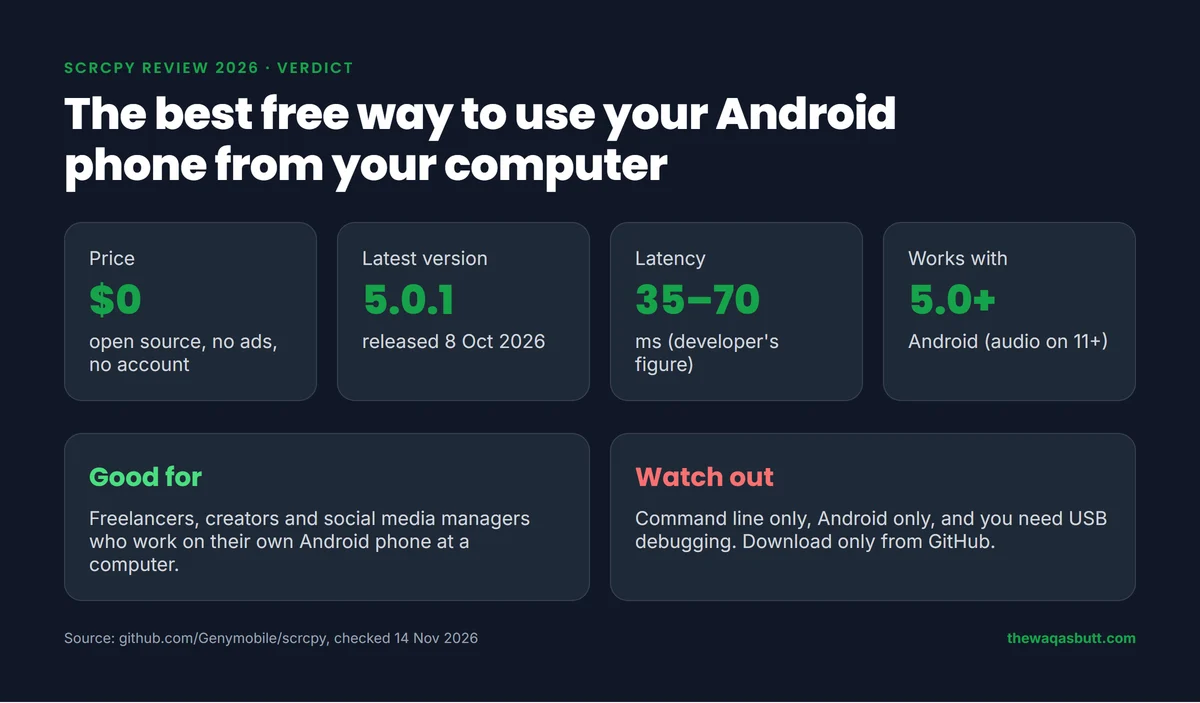
- What it is: a free, open-source app that mirrors and controls an Android phone from your computer, over USB or Wi-Fi.
- Best for: freelancers, content creators, social media managers and developers who work on one or a few of their own phones.
- Not for: iPhone users, people who want a point-and-click app with menus, or anyone who needs many phones without buying them.
- Price: $0. No paid plan, no account, no ads.
- Needs: Android 5.0 or newer with USB debugging turned on. Audio works on Android 11 and newer.
Download scrcpy only from its official GitHub page. Its own README warns that the GitHub repo is the only official source.
In this review
- What is scrcpy?
- How I researched this review
- What’s new in scrcpy 5.0
- Key features
- Is scrcpy free and safe?
- How to install scrcpy
- How to connect your phone (USB)
- How to use scrcpy wirelessly
- Useful scrcpy commands
- Keyboard shortcuts
- Common problems and fixes
- Pros and cons
- Who scrcpy is for (and who it’s not)
- When one phone isn’t enough: cloud phones
- What other scrcpy reviews get wrong
- Practical tips before you start
- Final verdict
- FAQ
What is scrcpy?
Scrcpy (pronounced “screen copy”) is a screen mirroring and control tool for Android. It was created by Romain Vimont at Genymobile, and he still maintains it.
It mirrors both video and audio from your phone to Windows, macOS or Linux. You can click, type, scroll and copy-paste as if the phone were part of your computer.
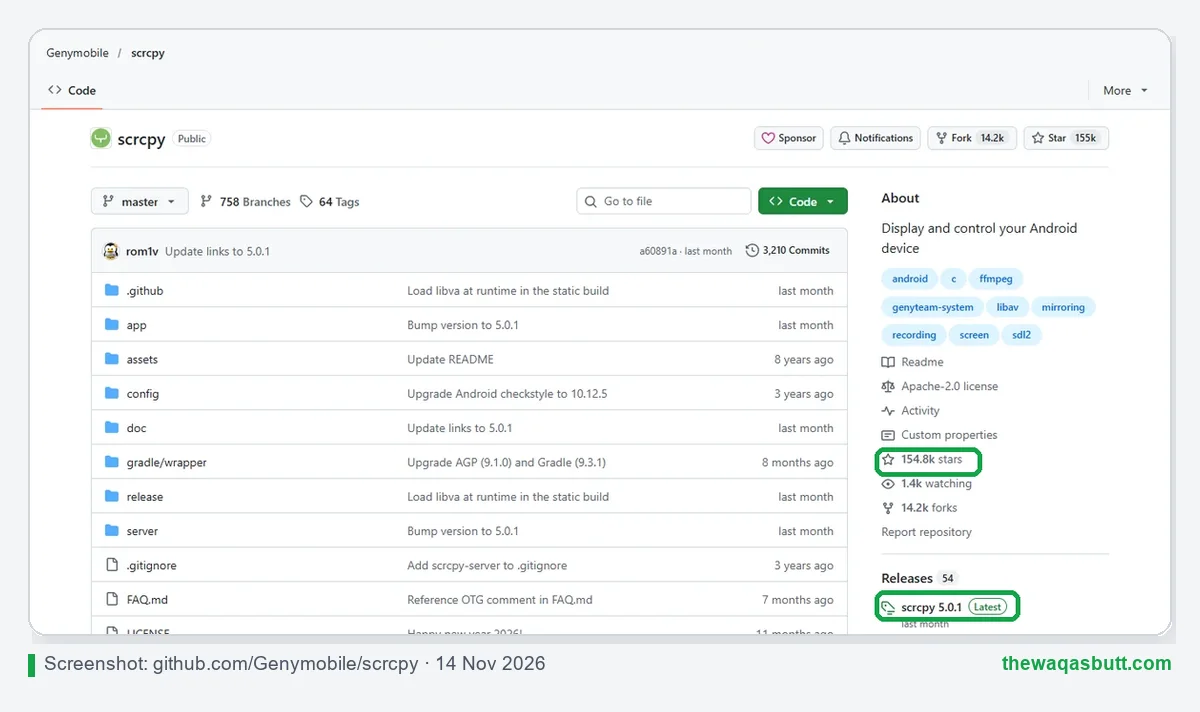
It is one of the most popular open-source projects on GitHub, with 154.8k stars and 14.2k forks when I checked on 14 November 2026.
Scrcpy is a command-line app. You start it from a terminal, and options are added as short commands. That sounds technical, but the basic setup needs only one command, and I’ll show you every step.
How I researched this review
Here is exactly how I made this review, so you can judge it fairly.
- Official sources: I read scrcpy’s README, its documentation pages (install, connection, audio, recording, device, shortcuts) and the release notes for versions 5.0 and 5.0.1, all checked on 14 November 2026.
- Competitor reviews: I analyzed 10 scrcpy reviews and guides that rank in the US. None of them mentions version 5.0, and several are written by companies selling paid mirroring apps.
- Cloud phone data: DuoPlus and Multilogin facts come from their official pricing and help pages, with dates.
- What I didn’t do: I didn’t run speed or latency tests of my own. Performance numbers below are scrcpy’s own figures, and I say so each time.
What’s new in scrcpy 5.0
Scrcpy 5.0 was released on 5 October 2026, followed by a bug-fix release, 5.0.1, on 8 October. The biggest change is hardware decoding.
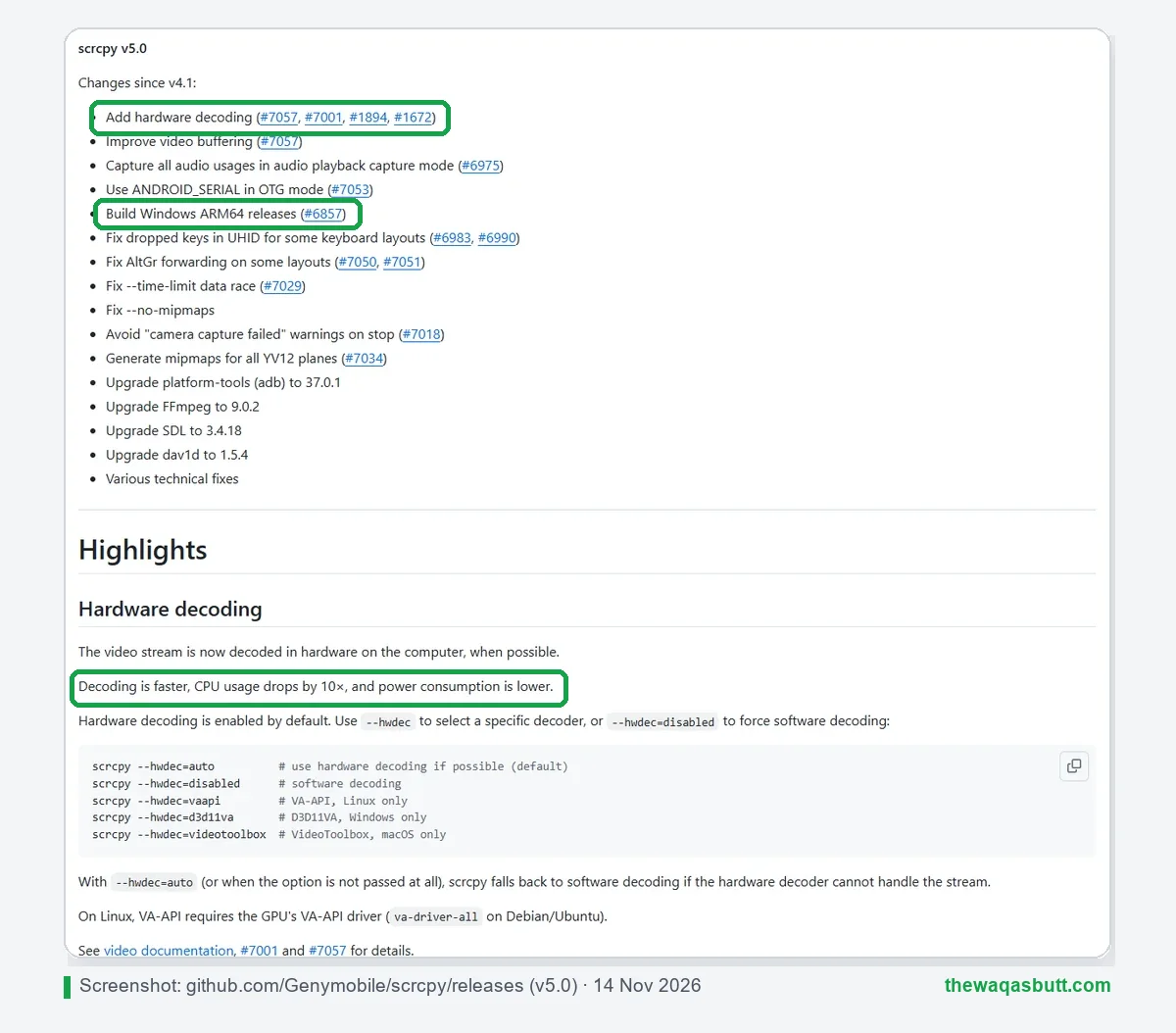
- Hardware decoding: the video is now decoded by your computer’s graphics chip. The release notes say CPU usage drops by 10× and power use is lower. It’s on by default.
- Windows ARM64 builds: there is now a native download for Windows laptops with ARM chips.
- Better audio capture in playback mode, plus fixes for some keyboard layouts.
- Updated tools: the Windows download bundles ADB (platform-tools) 37.0.1.
Hardware decoding matters most on older or cheaper laptops, where software decoding could make the fan spin and the battery drain. If it causes problems on your computer, you can switch it off:
scrcpy --hwdec=disabledKey features
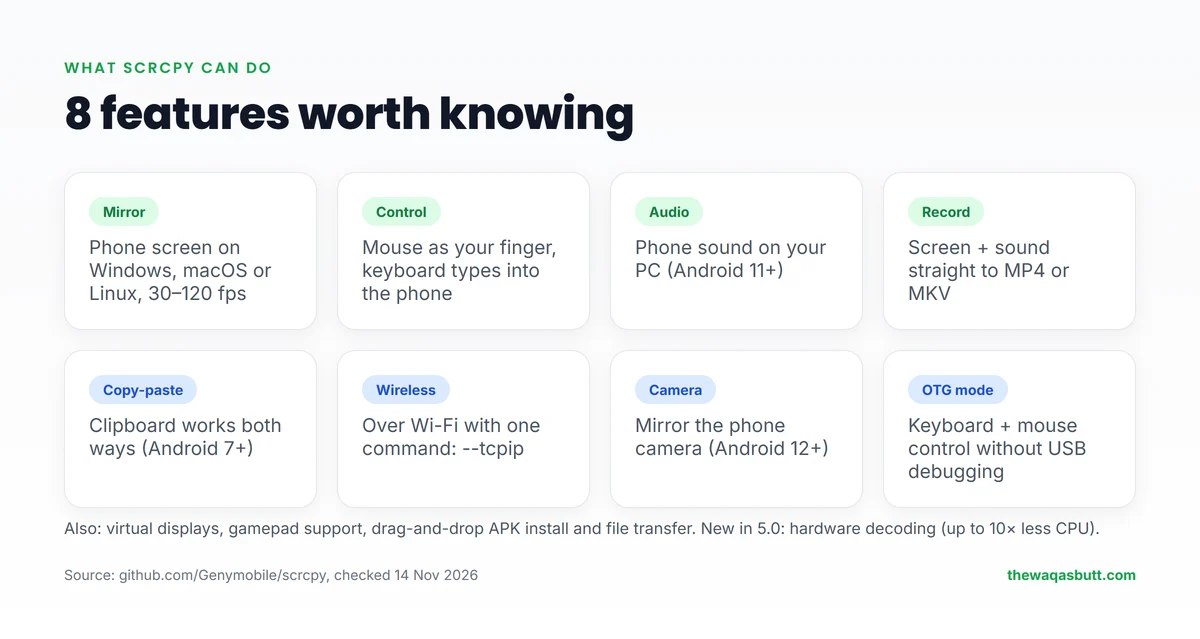
These are the features that matter most for everyday work, based on scrcpy’s official documentation.
Fast, sharp mirroring
Scrcpy’s README lists 30 to 120 fps depending on the phone, 1920×1080 or above quality, 35 to 70 ms latency and about 1 second to show the first image. These are the developer’s figures, not my own tests.
Audio forwarding
Since version 2.0, scrcpy also sends your phone’s sound to the computer. It works out of the box on Android 12 and newer. On Android 11, the phone screen must be unlocked when you start scrcpy. Android 10 and older can’t send audio.
Recording
You can record the screen and sound straight to an MP4 or MKV file on your computer. Scrcpy’s docs say timestamps are captured on the phone, so the recording stays clean even if your connection stutters.
Keyboard, mouse and copy-paste
Your mouse works as a finger, and your keyboard types into the phone. Copy-paste works in both directions, which is a real time-saver for captions, replies and passwords stored on your PC.
Virtual display and camera mirroring
Scrcpy can open an app in a separate virtual display, so it doesn’t take over your phone’s own screen. On Android 12 and newer, it can also mirror the phone’s camera, and on Linux it can turn the phone into a webcam.
OTG mode
In OTG mode, scrcpy controls the phone as if a physical keyboard and mouse were plugged in. It doesn’t mirror the screen, but it works without USB debugging.
Is scrcpy free and safe?
Yes, scrcpy is completely free. It’s open-source under the Apache 2.0 license, and anyone can read its code on GitHub.
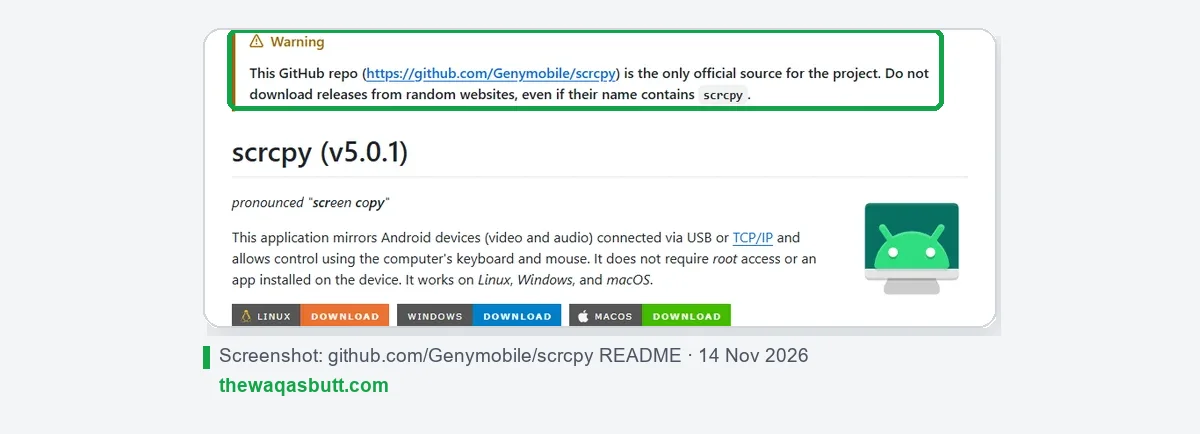
It also doesn’t collect much from you by design. The README lists “no account, no ads, no internet required”, and nothing is left installed on the phone when you close it.
The real risk is fake download sites. Many websites use the scrcpy name to offer modified installers. The developer’s own warning is clear: download only from GitHub, or install it with a trusted package manager like WinGet or Homebrew.
One more safety point: scrcpy uses USB debugging, which gives a connected computer deep access to your phone. Only allow computers you own, and turn USB debugging off when you’re not using it.
How to install scrcpy
Pick your operating system below. Each method installs the official scrcpy 5.0.1 release.
Windows
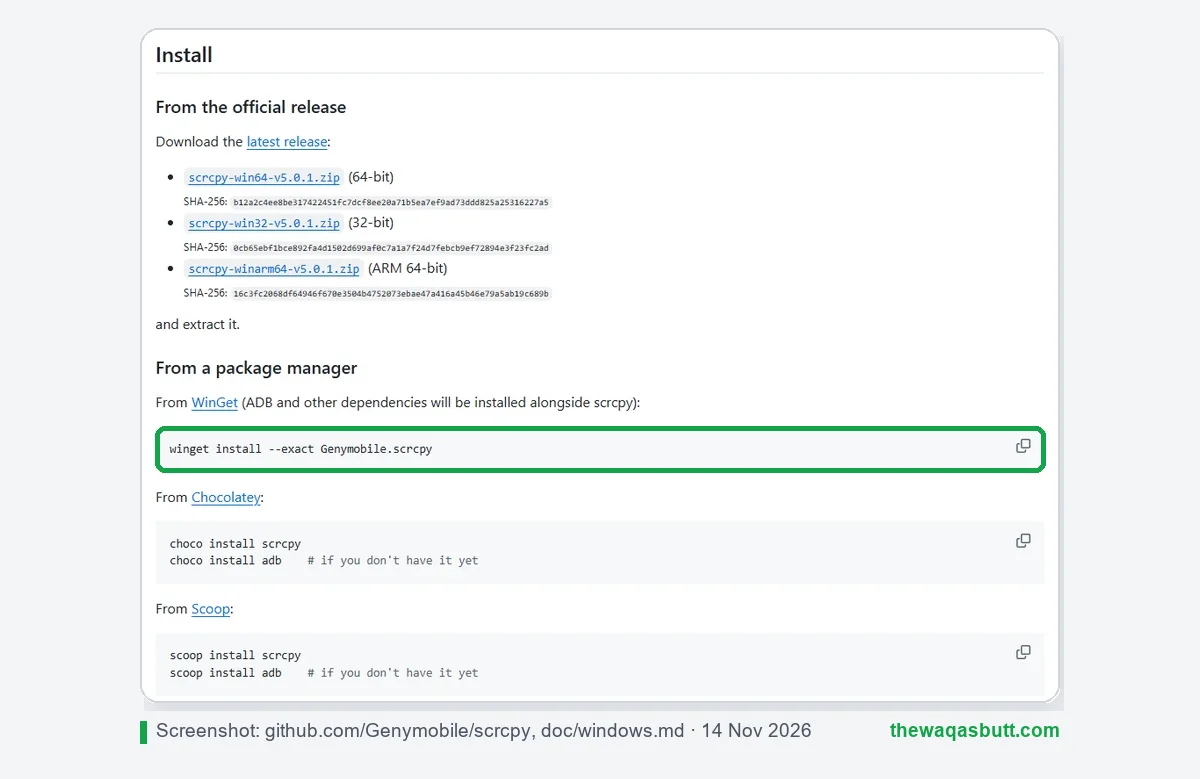
Option 1, the easiest: open PowerShell or Command Prompt and run this WinGet command. It installs ADB along with scrcpy.
winget install --exact Genymobile.scrcpyOption 2, the ZIP file: download scrcpy-win64-v5.0.1.zip from the GitHub releases page and extract it to a folder. Inside, double-click open_a_terminal_here.bat and type scrcpy.
Tip: if you always use the same options, put them in a small .bat file in the scrcpy folder and double-click it. The docs also include scrcpy-noconsole.vbs to start scrcpy without a terminal window.
macOS
Install scrcpy and ADB with Homebrew:
brew install scrcpy
brew install --cask android-platform-tools
MacPorts also works (sudo port install scrcpy), and the official site offers ready-made downloads for Apple Silicon and Intel Macs.
Linux
Be careful here. The official docs mark the Debian/Ubuntu apt package and the Snap package as obsolete versions. Use the official static build from GitHub, or your distribution’s package if it’s up to date:
# Arch Linux
pacman -S scrcpy

# Fedora
dnf copr enable zeno/scrcpy && dnf install scrcpy
Ubuntu users can also clone the repo and run the official install_release.sh script, which installs the latest release.
How to connect your phone (USB)
Scrcpy needs USB debugging on your phone. Here is the full setup, start to finish.
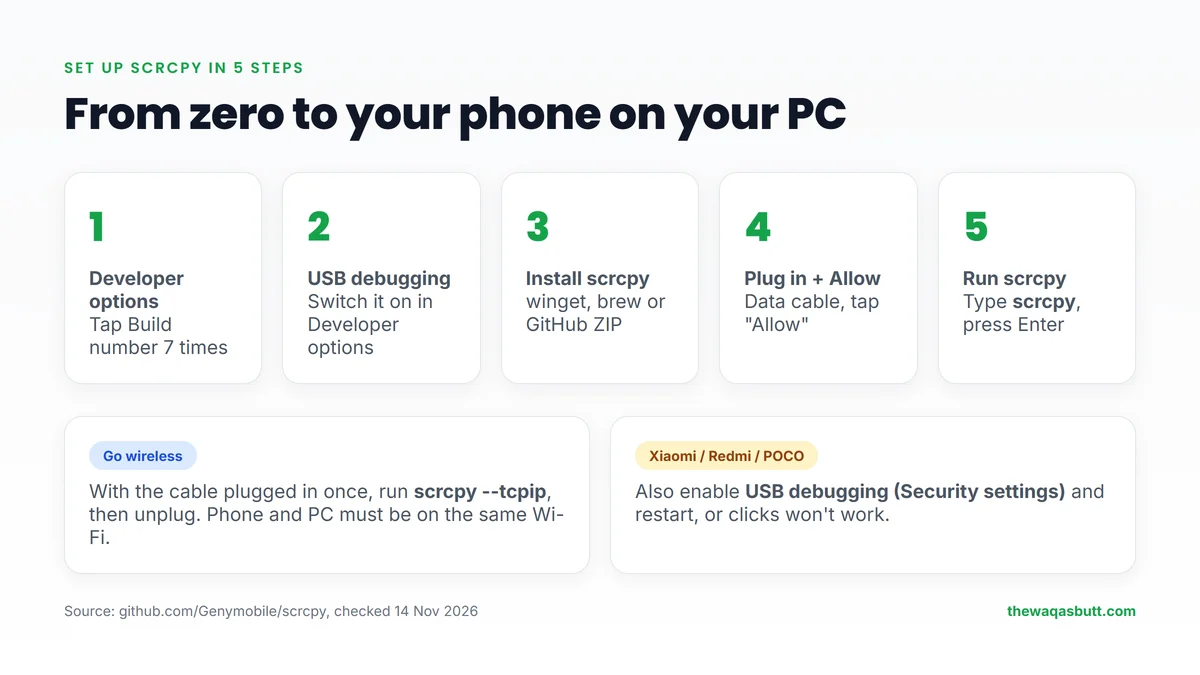
- Turn on Developer options: open Settings → About phone and tap Build number seven times. (On Xiaomi phones, tap MIUI/OS version instead.)
- Turn on USB debugging: go to Settings → Developer options and switch on USB debugging.
- Plug in your phone with a USB cable that supports data, not a charge-only cable.
- Allow the computer: a pop-up asks “Allow USB debugging?”. Tick “Always allow from this computer” and tap Allow.
- Start scrcpy: type scrcpy in your terminal and press Enter. Your phone screen appears in a window within a second or two.
scrcpy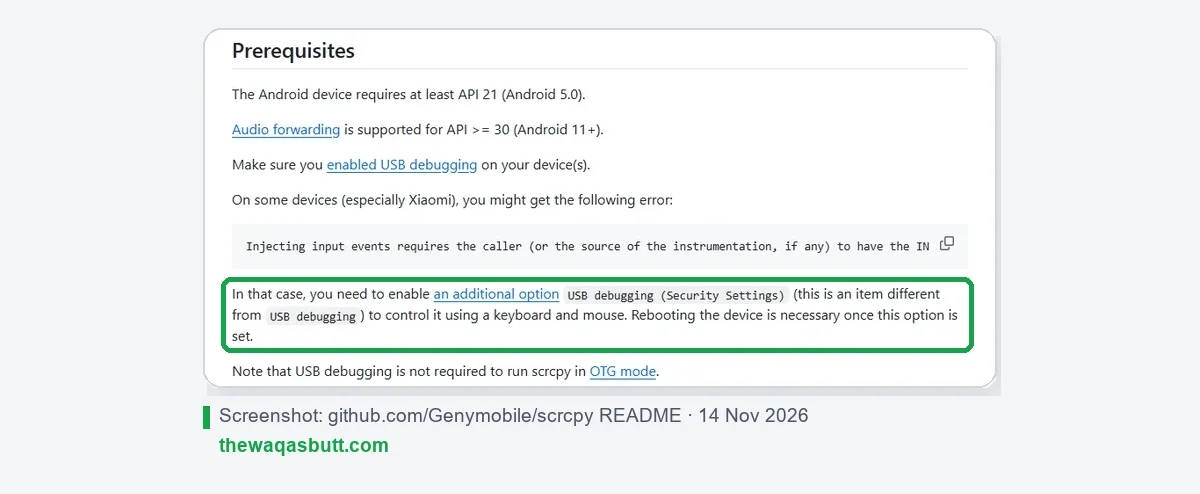
Xiaomi, Redmi and POCO users: if you can see the screen but can’t click, enable the extra option USB debugging (Security settings) in Developer options, then restart the phone. Scrcpy’s README calls this out specifically.
How to use scrcpy wirelessly
You don’t need the cable every time. Scrcpy can connect over Wi-Fi when the phone and the computer are on the same network.
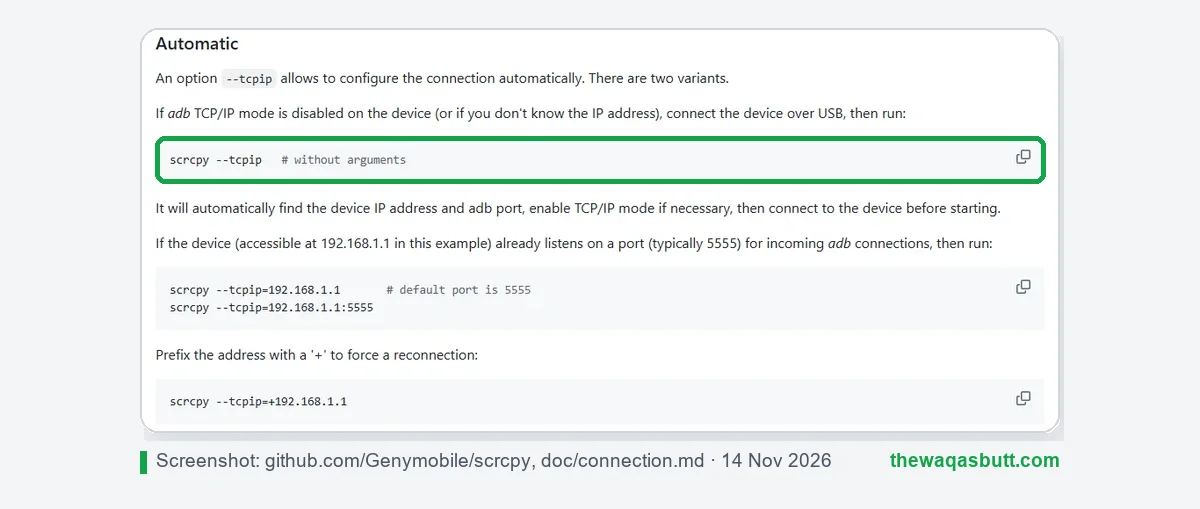
The easy way: plug the phone in by USB once, then run:
scrcpy --tcpipScrcpy finds the phone’s IP address, switches it to wireless mode and connects. Now you can unplug the cable and keep working.
Next time, if the phone still listens for wireless connections, connect directly with its IP address (find it in Settings → About phone → Status):
scrcpy --tcpip=192.168.1.1Replace 192.168.1.1 with your phone’s IP. On Android 11 and newer, the built-in Wireless debugging option can also pair a phone without any cable, using the adb pair command.
Wireless mirroring is a bit slower than USB. If it lags, lower the resolution with the -m option shown in the next section.
Useful scrcpy commands
You can combine these options in one command. These are the ones I’d use most for freelancing and content work.
| What you want | Command |
|---|---|
| Smoother mirroring on a slow PC | scrcpy -m1024 |
| Limit the frame rate | scrcpy –max-fps=30 |
| Record screen and sound to a file | scrcpy –record=file.mp4 |
| Mirror without sound | scrcpy –no-audio |
| Turn the phone screen off while mirroring | scrcpy –turn-screen-off –stay-awake (short: scrcpy -Sw) |
| Show your taps (for tutorials) | scrcpy –show-touches (short: scrcpy -t) |
| Open an app in a separate virtual display | scrcpy –new-display=1920×1080 –start-app=org.videolan.vlc |
| Mirror the phone camera (Android 12+) | scrcpy –video-source=camera |
| Use the phone mic as a recorder | scrcpy –audio-source=mic –no-video –no-playback –record=file.opus |
| Pick one phone when several are connected | scrcpy -s SERIAL (USB only: -d, Wi-Fi only: -e) |
| Control the phone without USB debugging | scrcpy –otg |
For tutorials and YouTube videos, scrcpy –show-touches –record=file.mp4 is a handy pair: viewers see where you tap, and the recording is saved straight to your computer.
Keyboard shortcuts
Scrcpy has shortcuts for the phone’s buttons. MOD is your left Alt key or left Windows/Cmd key by default.
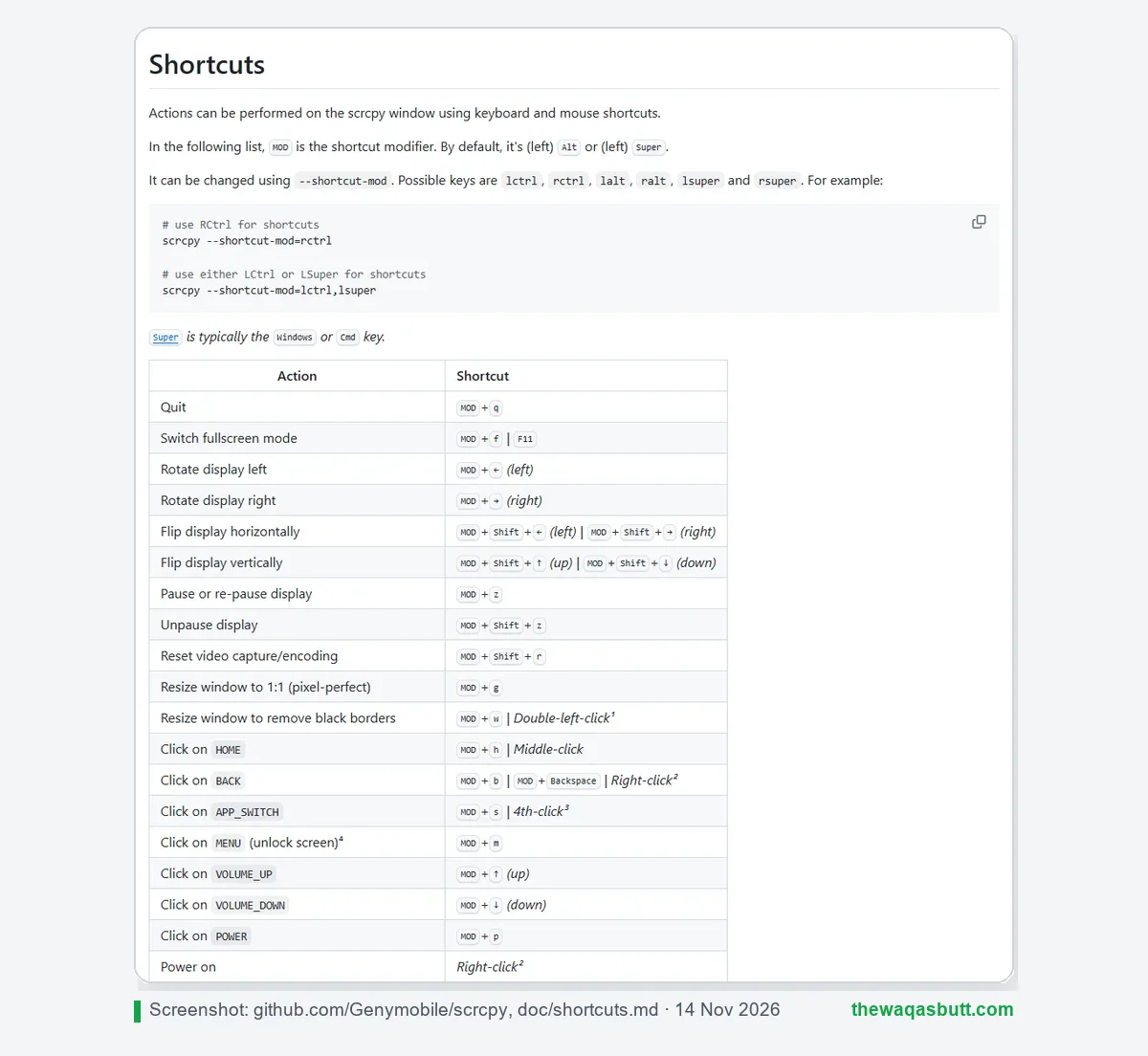
| Action | Shortcut |
|---|---|
| Home | MOD + h, or middle-click |
| Back | MOD + b, or right-click |
| Recent apps | MOD + s |
| Power button | MOD + p |
| Volume up / down | MOD + ↑ / MOD + ↓ |
| Turn phone screen off (keep mirroring) | MOD + o |
| Full screen | MOD + f |
| Rotate the phone screen | MOD + r |
| Open notifications | MOD + n |
| Copy / cut / paste (Android 7+) | MOD + c / MOD + x / MOD + v |
| Install an APK | Drag and drop the APK file onto the window |
| Send a file to the phone | Drag and drop any other file |
Common problems and fixes
Most scrcpy problems have simple fixes. These come from scrcpy’s own documentation.
“Device not found” or nothing happens
Check that USB debugging is on, the cable carries data, and you tapped Allow on the phone. Unplug and plug in again to bring the pop-up back.
The screen shows, but clicks don’t work
This is the Xiaomi problem mentioned above. Turn on USB debugging (Security settings) and restart the phone.
More than one device connected
Scrcpy picks the device automatically only when exactly one is connected. Otherwise, choose one with -s and its serial (from adb devices), or use -d for USB and -e for Wi-Fi.
There’s no sound
Audio needs Android 11 or newer. On Android 11, unlock the phone before starting scrcpy. On Android 10 or older, scrcpy mirrors video only.
Mirroring is laggy
Lower the resolution with scrcpy -m1024 and the frame rate with –max-fps=30. Over Wi-Fi, move closer to the router or switch to USB.
The phone goes to sleep
Use –stay-awake (-w). Note that it only works while the phone is plugged in; over Wi-Fi alone, use –keep-active instead, which keeps the phone active while scrcpy runs.
Pros and cons
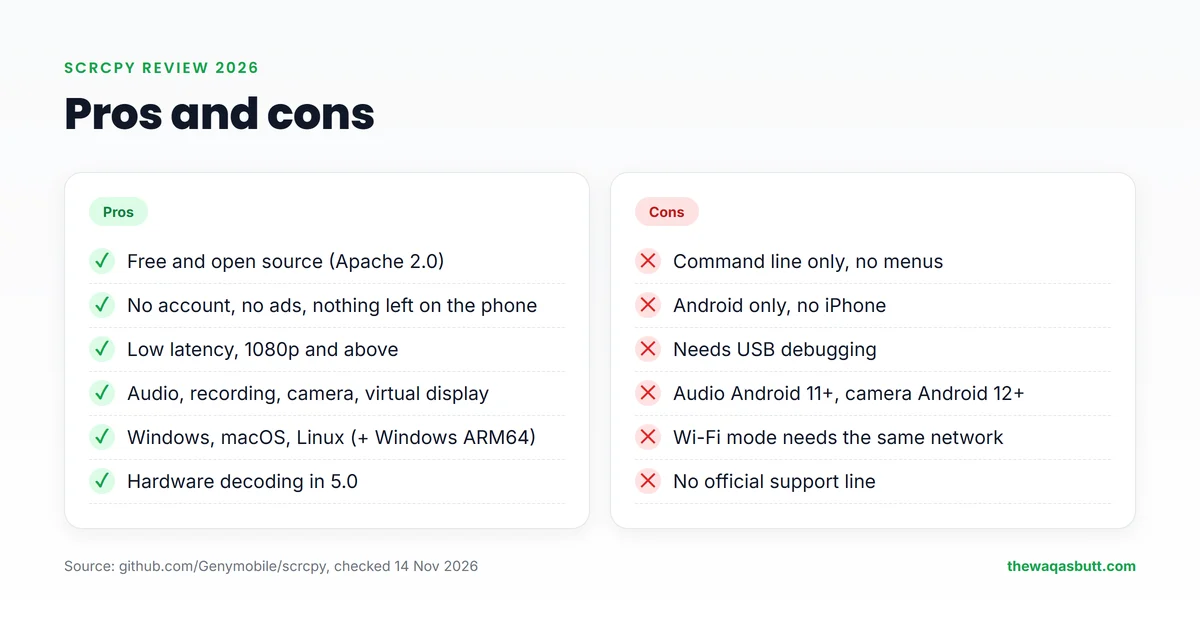
| Pros | Cons |
|---|---|
| Completely free and open-source | Command-line only, no menus or buttons |
| No account, no ads, no app on the phone | Android only, no iPhone support |
| Low latency and high quality (developer figures) | Needs USB debugging and a little setup |
| Audio, recording, camera and virtual display | Audio needs Android 11+, camera Android 12+ |
| Windows, macOS and Linux, now with ARM64 Windows builds | Wi-Fi mode needs the same local network |
| Hardware decoding in 5.0 cuts CPU use | No official support line, only GitHub issues and Reddit |
Who scrcpy is for (and who it’s not)
Scrcpy is a great fit if you…
- Manage social media from your own phone and want to type captions and replies on a real keyboard.
- Make tutorials or YouTube videos about Android apps and need clean screen recordings with sound.
- Work at a computer all day and want to answer WhatsApp, check apps or copy files without picking up the phone.
- Test Android apps as a developer, or manage a few test phones from one desk.
Look elsewhere if you…
- Use an iPhone. Scrcpy is Android only.
- Need a point-and-click app. Scrcpy has no settings menu; everything is a command.
- Need many separate phones for different accounts but don’t want to buy them. A cloud phone service fits better (see below).
- Want to control a phone from anywhere over the internet. Scrcpy’s simple Wi-Fi mode is meant for a phone on your local network.
When one phone isn’t enough: cloud phones
Scrcpy has one built-in limit: it controls phones you physically own. If you run accounts for several clients, you’d need one real phone per account, plus cables, chargers and desk space.
That’s where cloud phones come in. A cloud phone is a real Android phone in a data center that you rent by the month and open on your screen, just like a scrcpy window.
DuoPlus: cheap cloud phones with ADB
DuoPlus rents cloud phones from $2 per phone per month, falling to $1.40 at 10+ phones and $0.80 at 100+. Run time is billed separately: $0.06 per 10 minutes (up to $1.20 a day per phone) or $19.90 a month for always-on use. Prices checked on 10 November 2026.
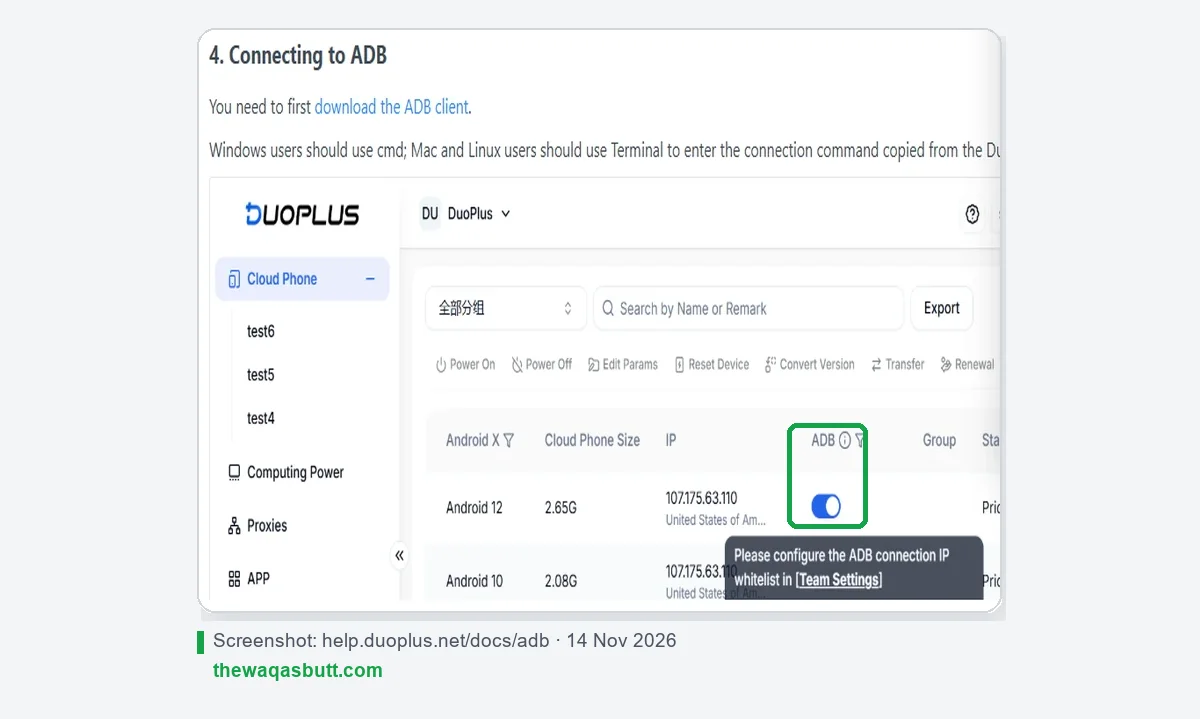
For scrcpy users, the interesting part is that DuoPlus documents ADB access. You whitelist up to 10 IP addresses, switch on ADB for a phone, and connect with adb connect IP:port.
Scrcpy works with any device that adb can see, and it accepts an ip:port serial (scrcpy -s IP:port). I haven’t tested scrcpy on a DuoPlus phone myself, so check it on the free trial before you pay.
- Free trial: 1 cloud phone for 30 days with 30 minutes of run time.
- Android versions: 15, 12, 11 and 10, on real ARM phones (not emulators), according to DuoPlus.
- Watch out: no refunds on paid services, and proxies aren’t included. You need one proxy per phone, for example from Proxy-Seller.
Read my full DuoPlus review for pricing details, limits and setup.
Multilogin: cloud phones plus browser profiles
If you also manage web accounts, Multilogin combines Android cloud phones (Android 10 to 16) with antidetect browser profiles in one app. Cloud phones are billed by the minute only while they run, and Multilogin says they can be controlled through ADB too.
My code Waqas50 gives 50% off your first payment. See my Multilogin review for the full pricing.
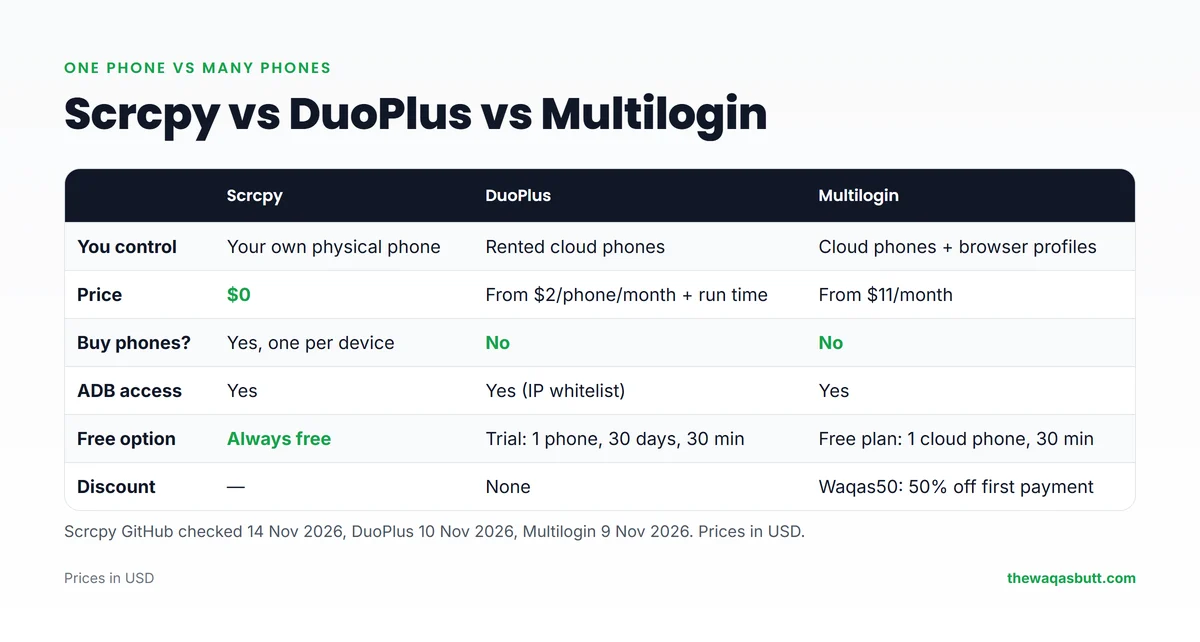
| Scrcpy | DuoPlus | Multilogin | |
|---|---|---|---|
| What you control | Your own physical phone | Rented cloud phones | Cloud phones + browser profiles |
| Price | $0 | From $2/phone/month + run time | Plans from $11/month (Waqas50: 50% off first payment) |
| Need to buy phones? | Yes, one per device | No | No |
| Separate device identity per account | Only if you own separate phones | Yes, per cloud phone | Yes, per cloud phone |
| ADB access | Yes (that’s how it works) | Yes, with IP whitelist | Yes, per Multilogin’s docs |
| Free option | Always free | Free trial: 1 phone, 30 days, 30 minutes | Free plan: 1 cloud phone, 30 one-time minutes |
Remember: separate devices keep accounts apart, but every account still has to follow the rules of its platform.
What other scrcpy reviews get wrong
I read 10 scrcpy reviews and guides that rank in the US. Here’s what most of them miss.
- They’re out of date. None of the 10 mentions scrcpy 5.0 or hardware decoding. Some still describe versions 2.4 or even 1.0.
- Some still say there’s no audio. At least one popular how-to lists “no audio” as a con. Audio has worked since version 2.0 on Android 11+.
- Several are written by competitors. A few top-ranking “scrcpy reviews” are published by companies that sell paid mirroring apps, and they end by recommending their own product.
- Windows is often skipped. Many guides cover Linux only, even though most readers use Windows. Almost none mention the one-line WinGet install.
- They recommend obsolete Linux packages. The official docs mark the Ubuntu apt and Snap packages as obsolete versions.
- Few explain the easy wireless method. Most use the older manual adb steps instead of scrcpy –tcpip.
Practical tips before you start
- Xiaomi, Redmi and POCO phones are very common worldwide. Turn on “USB debugging (Security settings)” too, or your clicks won’t work.
- No internet needed. Scrcpy over USB uses no mobile data at all, and Wi-Fi mode only needs your local network, so slow internet doesn’t matter.
- Avoid “scrcpy download” sites. Use WinGet or GitHub. Fake installers are a common way to spread malware.
- Older laptop? Scrcpy 5.0’s hardware decoding reduces CPU load. Add -m1024 if it still struggles.
- Check your Android version before buying a phone for content work: audio needs Android 11+, camera mirroring Android 12+.
- Cloud phone prices are in US dollars. If you try DuoPlus or Multilogin, use a card that allows international online payments.
Final verdict
Scrcpy is the best free way to use an Android phone from your computer in 2026. It’s fast, private, ad-free, and version 5.0 made it lighter on older laptops.
The only real hurdle is the command line, and for most people that means one install command and typing scrcpy. If you work on your own phone every day, install it today.
If your work grows beyond the phones you own, look at cloud phones instead of buying more devices. DuoPlus is the cheapest way to start, and Multilogin suits you if you also need browser profiles.
Want more honest tool reviews? Browse my resources page or join the newsletter.
FAQ
Is scrcpy free?
Yes. Scrcpy is free and open-source under the Apache 2.0 license. It has no paid plan, no account and no ads.
Is scrcpy safe to use?
Yes, when you download it from the official GitHub page or a trusted package manager like WinGet or Homebrew. Its README warns that the GitHub repo is the only official source. Only allow USB debugging for computers you own.
Does scrcpy work without USB?
Yes. Plug the phone in once and run scrcpy –tcpip to switch to Wi-Fi, or connect directly with scrcpy –tcpip=PHONE_IP. The phone and computer must be on the same network.
Does scrcpy mirror sound?
Yes, on Android 11 and newer. Android 12+ works out of the box; on Android 11 the phone must be unlocked when scrcpy starts. Android 10 and older mirror video only.
Does scrcpy work with iPhone?
No. Scrcpy only works with Android devices running Android 5.0 or newer.
What is the latest version of scrcpy?
Scrcpy 5.0.1, released on 8 October 2026. Version 5.0 (5 October 2026) added hardware decoding, which the developer says cuts CPU usage by 10×.
Can scrcpy record the screen?
Yes. Run scrcpy –record=file.mp4 to save the screen and sound to an MP4 file on your computer. MKV, and audio-only formats such as OPUS, are also supported.
Can I use scrcpy with a cloud phone?
DuoPlus documents ADB access for its cloud phones, and scrcpy works with devices that adb can connect to. I haven’t tested this combination myself, so try it on DuoPlus’s free trial first.