Disclosure: This article contains affiliate links. If you buy through them, I may earn a commission at no extra cost to you. I only recommend tools I’ve researched carefully, and my opinions are my own. Read the full disclaimer.
This is the companion page for my YouTube video “How to Create a FREE Website With AI (Then Sell It for Money)”. Here you’ll find the master AI website prompt from the video, ready to copy with one click, plus every step in writing.
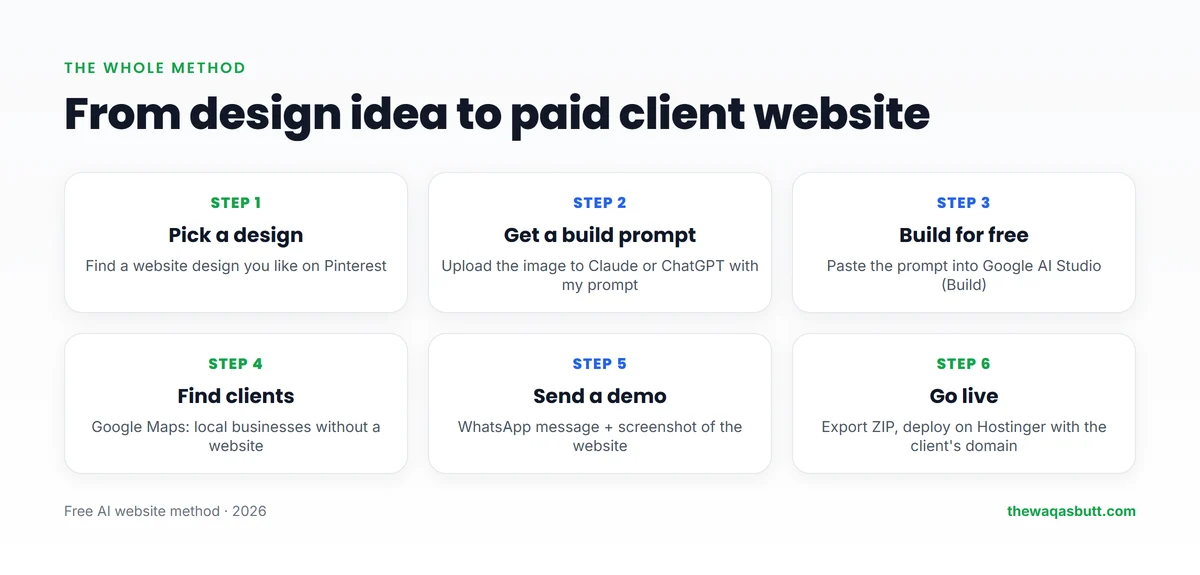
The method in short: you pick a website design you like, let AI write a detailed build prompt, create the full website for free in Google AI Studio, then find local businesses without a website and offer it to them.
Watch the video
Prefer reading? Every step from the video is written out below.
On this page
- Get the master prompt
- What you need
- How the method works
- Step-by-step: build the website for free
- Step-by-step: find clients
- Step-by-step: put the website live on Hostinger
- Which Hostinger plan do you need?
- Common mistakes to avoid
- How to adapt the prompt for different businesses
- Tips for writing better AI prompts
- Check the website before you hand it to a client
- Final thoughts
- FAQ
The master AI website prompt
Use this in Claude or ChatGPT. First upload the screenshot of the design you like, then paste this prompt and send it. The AI writes one complete prompt that you then paste into Google AI Studio.
Analyze the website reference image I uploaded and create a highly detailed, copy-paste-ready prompt for Google AI Studio.
My goal is to build a professional, fully responsive, client-ready website inspired by this reference design.
Important instructions:

* Carefully analyze the complete visual style of the reference image.
* Understand the layout, spacing, typography, color palette, section structure, cards, buttons, backgrounds, shapes, image placement, alignment, and overall design language.
* Keep the same overall premium visual direction and design quality, but do NOT copy any brand name, logo, copyrighted text, or exact business identity from the reference.
* Turn the reference into an original website design.

Create a detailed Google AI Studio prompt that includes:

1. Overall website style and visual direction
2. Exact layout direction for every section
3. Hero section structure
4. Navigation/header design
5. Typography style and hierarchy
6. Color palette based on the reference
7. Buttons and CTA styles
8. Card design and section styling
9. Background effects, gradients, shadows, borders, and visual depth
10. Image placement and image style
11. Smooth animations, hover effects, scrolling effects, and micro-interactions where appropriate
12. Fully responsive behavior for desktop, tablet, and mobile
13. Clean professional footer
14. Strong conversion-focused content and CTAs
15. Generate all required high-quality images automatically if possible
16. Do not use placeholder images or empty image boxes
17. Make the final website look polished, premium, modern, and suitable to sell to a real client

Now write ONLY one complete, detailed prompt that I can directly paste into Google AI Studio to generate the website after that i can deploy it on hostinger.
Do not explain the reference image separately.
Do not give me suggestions or multiple options.
Give me only the final Google AI Studio website-building prompt.
Tip: click the Copy button on the box to copy the whole prompt in one click.
What you need
- A design idea: a website design you like, for example from Pinterest. Use it only as inspiration.
- Claude or ChatGPT to turn the image into a detailed website prompt, using the master prompt above.
- Google AI Studio to build the website from that prompt.
- A client’s domain and hosting when you sell the website. In the video I use Hostinger.
You can follow most steps on a phone too, but a computer is easier for the hosting part.
How the method works
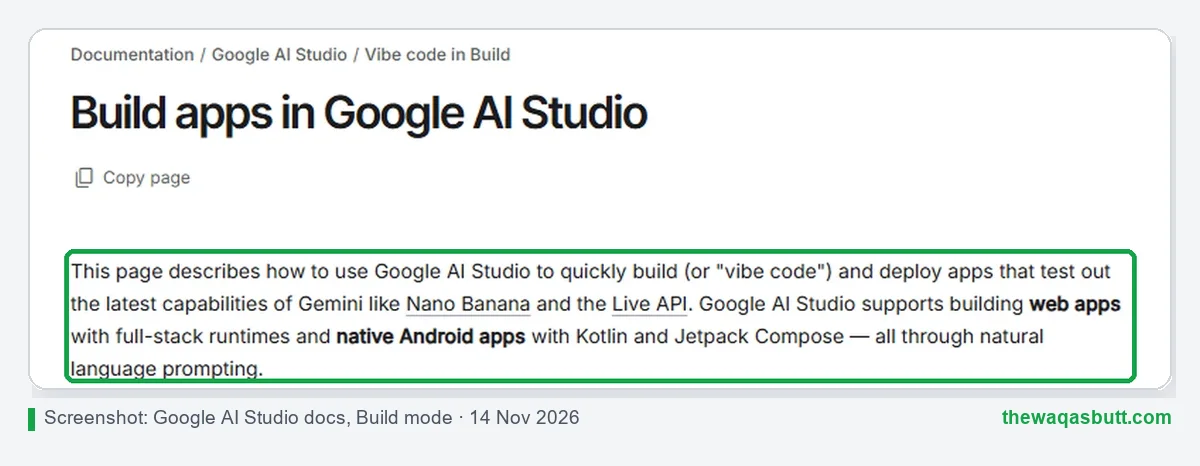
Google AI Studio is Google’s free tool for building apps with Gemini. In Build mode, you describe what you want and it writes the full website code for you.
The better your prompt, the better the website. That’s why we first let Claude or ChatGPT study a design image and write a detailed prompt that covers the layout, colours, fonts, sections, animations and images.
Step-by-step: build the website for free
- Find a design: search Pinterest for something like “luxury real estate website” and download a design you like.
- Get the build prompt: open Claude or ChatGPT, upload the image and paste the master prompt. It writes a detailed website prompt for you.
- Open Google AI Studio: search “Google AI Studio”, click Get started, accept the terms and open Build (My apps).
- Paste the prompt from Claude into AI Studio and send it. Building can take a few minutes; in my video it took about 8 minutes.
- Preview the website: check every section, form and animation. If images don’t load, use Reload the app.
- Make changes by simply typing what you want, for example a new colour or phone number. You can write in your own language, such as Spanish, Hindi, Arabic or English.
Building in AI Studio didn’t cost anything in my test. Google’s documentation notes that if you publish the app to Cloud Run, Cloud Run pricing may apply, so this method exports the code and hosts it on the client’s own hosting instead.
Step-by-step: find clients
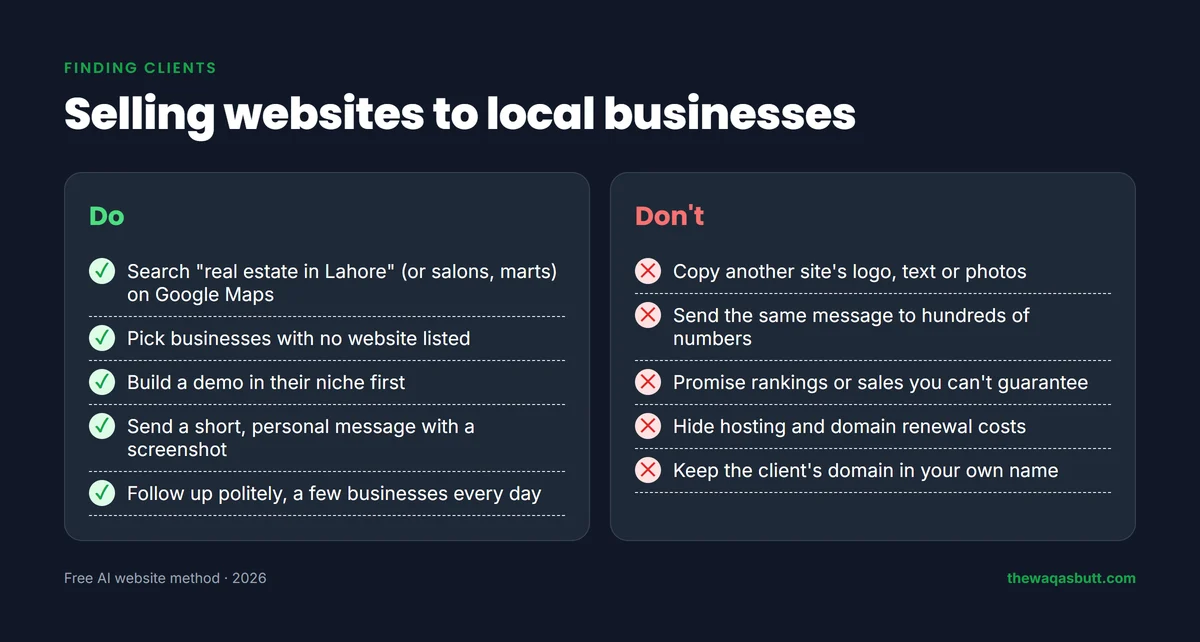
- Search Google Maps for a niche and city, for example “real estate in Dubai”. Other niches: beauty salons, marts, clinics, restaurants.
- Open each listing and note the businesses that don’t have a website, along with their phone number.
- Build a sample website for that niche first, so you have something to show.
- Write your message: ask Claude or ChatGPT for a short, friendly WhatsApp message, as I show in the video, and send it with a screenshot of the sample website.
- Follow up politely. Most people won’t reply to the first message, so contact a few new businesses every day.
Be respectful: send personal messages to a small number of businesses, and stop if someone says no. Mass, copy-paste messaging can get your number reported.
Step-by-step: put the website live on Hostinger
When a client agrees, they need a domain and hosting. These are the steps I show in the video:
- Download the code: in AI Studio, open the code view and use Export → Download as ZIP.
- Buy hosting that supports web apps (see the plan section below). Use my Hostinger link and code SK20 at checkout; I recommend at least a 12-month plan.
- Claim the free domain in hPanel: Domains → Get a new domain, search the client’s business name and claim it.
- Create the website: go to Websites → Create website → Web app, choose the domain and select Upload your files.
- Upload the ZIP, click Next and choose the Vite framework preset.
- Add your Gemini API key: in AI Studio, click Get API key, copy it, and paste it as the environment variable value (the variable is named `GEMINI_API_KEY`).
- Deploy and wait for it to finish, then open the dashboard and visit the live site.
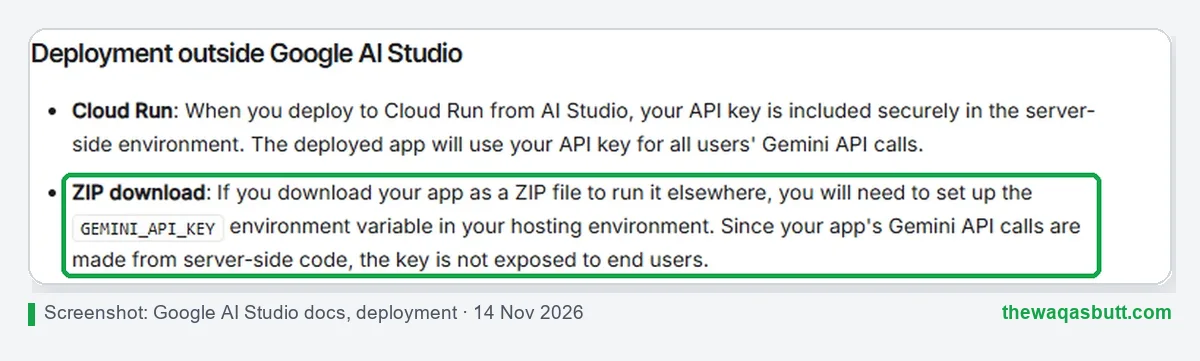
Google’s documentation explains why the key is needed: the app’s Gemini calls run on the server, so the key isn’t shown to visitors.
Which Hostinger plan do you need?
This part matters, and I want to be clear about it. A website built in AI Studio is deployed on Hostinger as a Web App, and not every plan includes web apps.
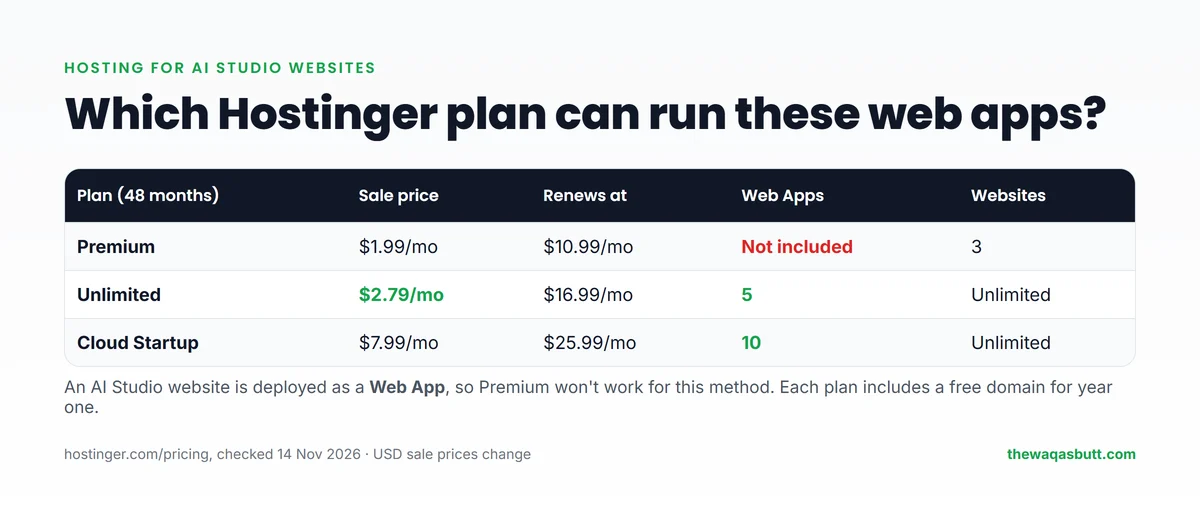
| Plan (48-month term) | Sale price | Renews at | Web Apps |
|---|---|---|---|
| Premium | $1.99/month | $10.99/month | Not included |
| Unlimited | $2.79/month | $16.99/month | 5 |
| Cloud Startup | $7.99/month | $25.99/month | 10 |
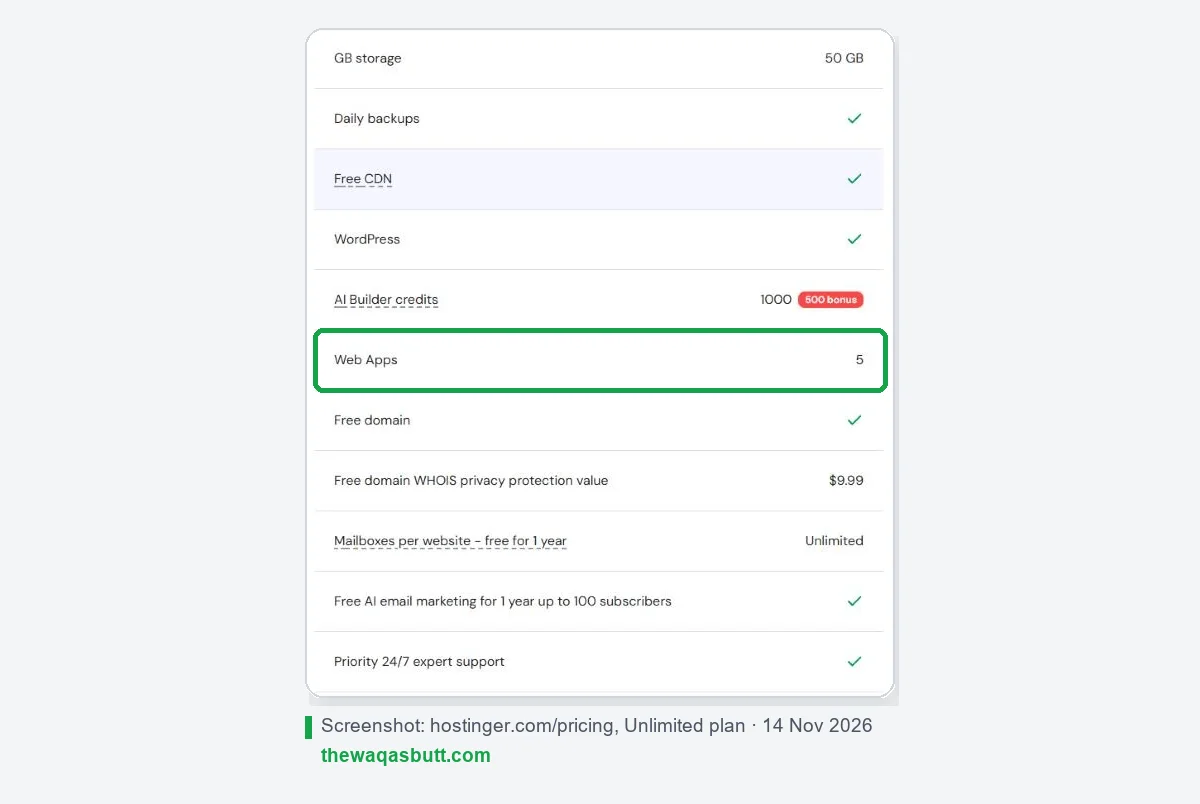
- One client: the Unlimited plan is the cheapest option that includes web apps (up to 5).
- More clients: Cloud Startup includes 10 web apps. Unlimited also hosts unlimited normal websites, such as WordPress sites.
- Who pays: the client usually pays for their own domain and hosting. Keep the domain registered in the client’s name.
You can see the current Hostinger plans here and use code SK20 at checkout. For a simple explanation of domains and hosting, read my guide to domain names and web hosting.
Common mistakes to avoid
- Copying a design exactly. Use designs as inspiration; never copy another company’s logo, text or photos.
- Buying the Premium plan for an AI Studio website. It doesn’t include web apps.
- Sharing your API key in screenshots or chats. Keep it private.
- Skipping the mobile check. Most visitors will open the site on a phone.
- Hiding renewal costs. Tell clients that hosting and domains renew yearly at a higher price.
How to adapt the prompt for different businesses
The master prompt gives you a strong design. What makes a website useful to a real business is the details you add before you build. Every business needs different content, so spend a few minutes gathering it first.
Ask the owner for the facts below, or find them on their social media page, and add them to the prompt before you send it to Google AI Studio. Use only details that are true, and ask the owner to confirm them.
Restaurant or cafe
- Services: dine-in, takeaway, delivery, catering or reservations.
- Menu: the main categories and a few popular dishes.
- Opening hours for every day, including any days they are closed.
- Location: the address and a map section.
- Call to action: “Book a table” or “Order now”.
Clinic or health practice
- Services: the treatments or specialties the clinic offers.
- Team: the names and roles of the doctors or staff, with their approval.
- Opening hours and how patients can reach the clinic in an emergency.
- Location: address, parking or access notes.
- Call to action: “Book an appointment” or “Call us”.
- A short privacy note, because patient information is sensitive.
Local shop
- Products: the main categories and a few bestsellers.
- Opening hours and any seasonal changes.
- Location: address, landmarks and a map.
- Ways to buy: visit the shop, order by phone or message.
- Call to action: “Visit us today” or “Message us to order”.
Freelancer portfolio
- Services: what you offer and who it is for.
- Selected work: a few projects with a short description of the result.
- About section: a short, friendly introduction and your skills.
- Testimonials, only if you have real ones with permission to use them.
- Call to action: “Hire me” or “Get in touch”.
For every business, keep the contact details, the services and the call to action easy to find. A visitor should know within a few seconds what the business does and how to contact it.
Tips for writing better AI prompts
The same habits that improve the master prompt will improve almost any prompt you write for an AI tool.
- Be specific. “A calm, modern website for a dental clinic” works better than “a nice website”. Mention the audience, the style and the goal.
- Give examples. Describe a style you like, or name the kind of sections you want, so the AI doesn’t have to guess.
- Ask for sections. List the sections in the order you want them, such as hero, services, about, testimonials, contact and footer.
- Iterate in small steps. Build the first version, look at it, then ask for improvements instead of rewriting the whole prompt.
- Ask the AI to fix one thing at a time. If you request five changes at once, one of them is often missed or something else breaks.
- Say what to keep. When you ask for a change, add “keep everything else the same” so the rest of the design stays put.
- Use real content. Supply the real text, services and contact details, and don’t leave the AI to invent them.
If a result isn’t right, don’t start over straight away. Describe what you see and what you want instead, in plain words. Clear feedback usually gets a better result than a longer prompt.
Check the website before you hand it to a client
A website that looks good in the preview can still have small problems. Go through this checklist before you show it to a client, and again before it goes live. It protects your reputation and saves awkward messages later.
- Check the mobile view. Open the site on a phone, or make your browser window narrow. Text should be readable and nothing should overlap or run off the screen.
- Click every link and button. Menu items, call-to-action buttons, social icons and the phone and email links should all go to the right place.
- Test the contact form. Send a test message and make sure it arrives where the client expects it. Many sample forms don’t send anything until they are connected properly.
- Read every word for spelling. Check names, services, addresses and headings. A typo in the business name is the most embarrassing mistake.
- Replace anything that isn’t real. Remove made-up phone numbers, addresses, reviews, team names and prices, and use the business’s real details.
- Check the images. Make sure they load, suit the business and are images you have the right to use.
- Run the page speed basics. Look for huge images, slow loading and anything that jumps around while the page loads. A free page-speed tool can point out the biggest problems.
- Test in more than one browser if you can, for example on a different phone or computer.
- Ask the client to approve it. Send them the preview, let them check the facts, and get a clear “yes” before the site goes live.
Write down the changes the client asks for and make them one at a time. When the client has approved the final version, keep a copy of the files in a safe place.
Final thoughts
With a good prompt, Google AI Studio can build a professional-looking website in minutes, and you don’t need to code. The real work is finding clients and delivering a site that helps their business.
Start with one niche, build a strong sample site, and contact a few businesses every day. For more tools I use, see my resources page.
FAQ
Is Google AI Studio free for building websites?
You can build and preview apps in Google AI Studio for free. Google notes that publishing to Cloud Run may have costs, so this method exports the code as a ZIP and hosts it on the client’s own hosting.
Where do I paste the master prompt?
In Claude or ChatGPT. Upload your design image first, then paste the master prompt. Copy the prompt it gives you and paste that into Google AI Studio’s Build mode.
Which Hostinger plan works for an AI Studio website?
The website is deployed as a Web App. According to Hostinger’s plan comparison on 14 November 2026, Premium doesn’t include web apps, Unlimited includes 5 and Cloud Startup includes 10.
Do I need a Gemini API key?
Yes, if you host the downloaded ZIP yourself. Google’s documentation says to set the GEMINI_API_KEY environment variable in your hosting. You can get the key from Google AI Studio.
How do I find clients for these websites?
Search Google Maps for a niche and city, note businesses without a website, build a sample site for that niche and send a short, personal WhatsApp message with a screenshot.
Can I do this on a mobile phone?
Most steps work on a phone, including AI Studio and WhatsApp outreach, but uploading and deploying on Hostinger is easier on a computer.
Want more step-by-step guides and prompts? Join my newsletter.