Disclosure: This article contains affiliate links. If you buy through them, I may earn a commission at no extra cost to you. I only recommend tools I’ve researched carefully, and my opinions are my own. Read the full disclaimer.
If you work online, you probably have dozens of accounts: email, Payoneer, Upwork or Fiverr, social media, hosting, and client dashboards. Most people handle this by reusing a few passwords, or saving them in a notebook or WhatsApp.
That’s risky. When one website gets hacked, attackers try the same email and password everywhere else.
Password managers fix this. In this guide, I’ll explain what they are, how they work, whether they’re safe, the free and paid options, and practical tips for freelancers, with prices checked on official sites in November 2026.
Quick answer
- A password manager stores all your passwords in an encrypted vault, creates strong new ones and fills them in for you.
- You remember one master password; the manager remembers the rest.
- Good ones use zero-knowledge encryption, so even the company can’t read your vault.
- Free options exist: NordPass Free, Bitwarden Free and the managers built into Google Chrome and Apple devices.
- Paid plans add extras like breach alerts and easy sharing. NordPass Premium was $1.39/month on a 2-year plan when I checked.
There’s no coupon code for this guide. If you want a simple, cross-device option, you can try NordPass, which also has a free plan.
In this guide
- What is a password manager?
- Why reusing passwords is dangerous
- How does a password manager work?
- Are password managers safe?
- Types of password managers
- Free vs paid password managers
- NordPass: a closer look
- How to create a strong master password
- Tips for freelancers and online workers
- How to start using a password manager
- Who needs a password manager?
- How to switch to a password manager in one weekend
- What to do if a password manager company has a security incident
- Passkeys and password managers
- How I researched this guide
- Final thoughts
- FAQ
What is a password manager?
A password manager is an app that saves your logins (usernames and passwords) in one secure, encrypted place called a vault. It works in your browser and on your phone.
Instead of remembering 50 passwords, you remember one master password. The manager can also:
- Generate long, random passwords for every new account.
- Autofill your login on the right website or app.
- Store other private data, such as card details, secure notes and files, depending on the plan.
- Warn you about weak, reused or leaked passwords on some paid plans.
Why reusing passwords is dangerous
Websites get hacked all the time. When that happens, lists of emails and passwords are often sold or leaked.
Attackers then try those same logins on other popular sites. This is called credential stuffing. If you reused your password, one leak can open your email, your payment accounts and your freelancing profile.
The US standards body NIST says using distinct passwords for each service is important to avoid these attacks, and that services must allow password managers and autofill.

How does a password manager work?
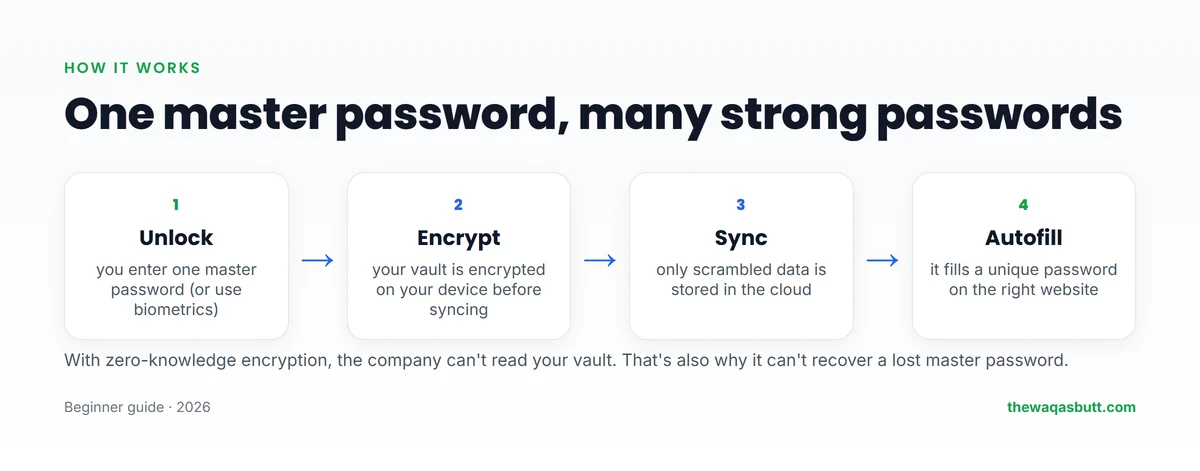
- You unlock the app with your master password, a fingerprint or face unlock.
- Your vault is encrypted on your own device before anything is uploaded.
- Only the encrypted copy is synced to the cloud, so your phone and laptop stay in sync.
- When you open a login page, the manager fills in the matching username and password.
This design is called zero-knowledge: the company stores your data but can’t read it. It’s also why most password managers can’t recover your master password if you forget it.
Are password managers safe?
A good password manager is much safer than reusing passwords. But no software is perfect, so it’s worth understanding the risks.
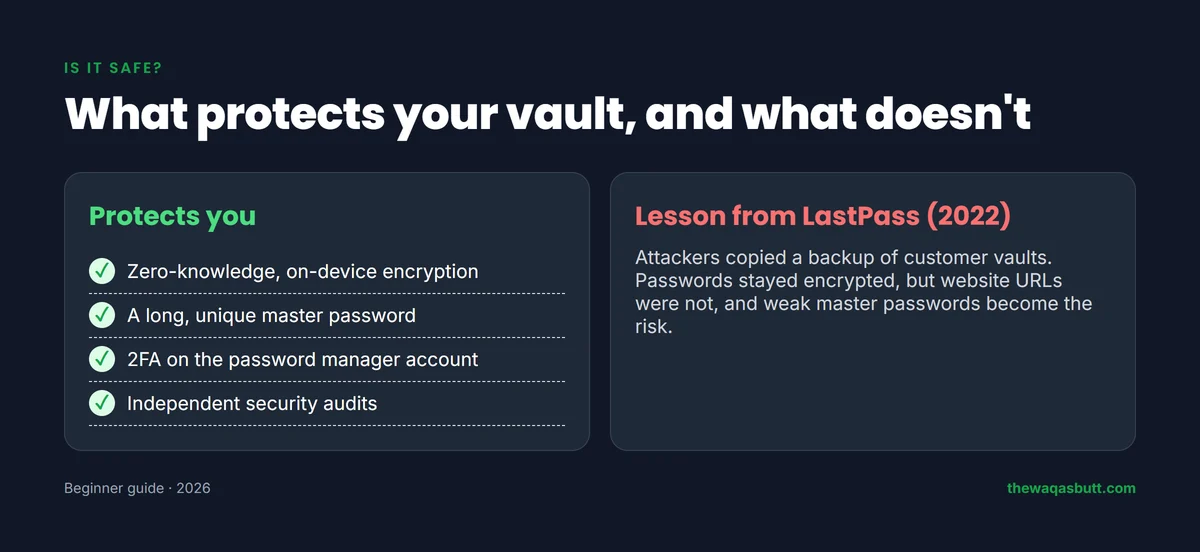
What protects you
- Zero-knowledge, on-device encryption. NordPass, for example, says it encrypts data locally before upload and uses XChaCha20 encryption.
- A strong master password that you don’t use anywhere else.
- Two-factor authentication on your password manager account.
- Independent security audits of the service.
A real lesson: the LastPass incident
In December 2022, LastPass reported that attackers had copied a backup of customer vault data. Its notice said usernames, passwords and notes stayed protected with 256-bit AES encryption, but some data, such as website URLs, was not encrypted.
The lesson: encryption protects your passwords only as well as your master password. A long, unique master password matters more than any feature.
Types of password managers
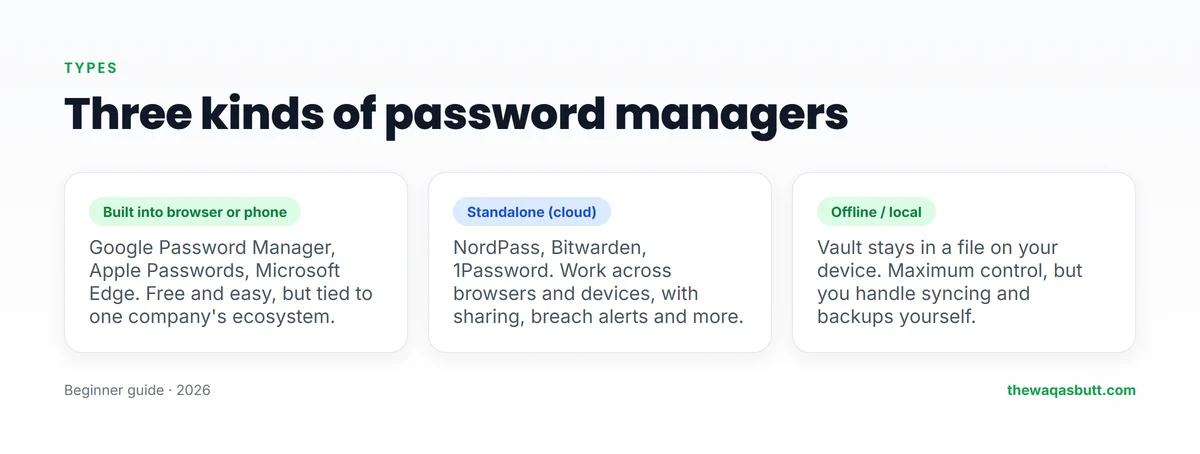
- Built-in managers: Google Password Manager (Chrome and Android), Apple’s Passwords app and Microsoft Edge. Free and convenient, but best if you stay in one ecosystem.
- Standalone cloud managers: NordPass, Bitwarden, 1Password and others. They work across browsers and devices, and add features such as sharing and breach alerts.
- Offline managers: your vault stays in a file on your device. More control, but you handle syncing and backups yourself.
A built-in manager is far better than reusing passwords. A standalone manager makes more sense if you use different browsers, share logins or work on several devices.
Free vs paid password managers
You don’t need to pay to start. Here’s what the free and paid plans of two popular managers include, checked on their official sites on 12 November 2026.
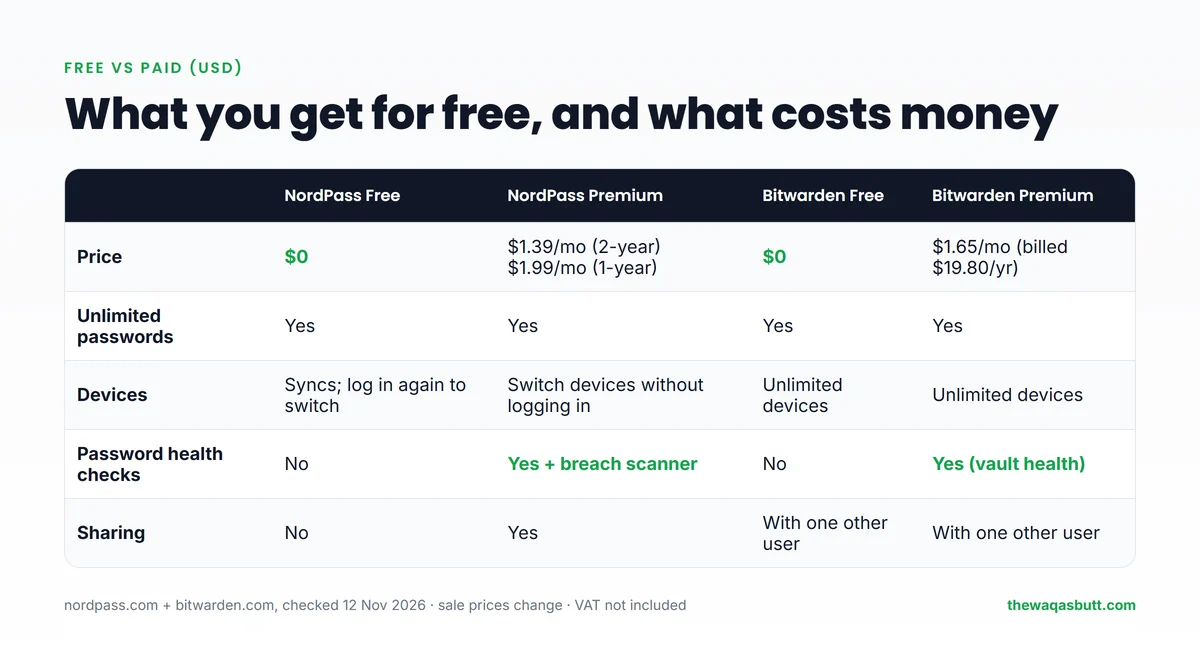
| NordPass Free | NordPass Premium | Bitwarden Free | Bitwarden Premium | |
|---|---|---|---|---|
| Price (USD) | $0 | $1.39/mo (2-year) or $1.99/mo (1-year) | $0 | $1.65/mo, billed $19.80/year |
| Unlimited passwords | Yes | Yes | Yes | Yes |
| Devices | Syncs; log in again to switch | Switch devices without logging in | Unlimited devices | Unlimited devices |
| Password health checks | No | Yes, plus Data Breach Scanner | No | Yes (vault health) |
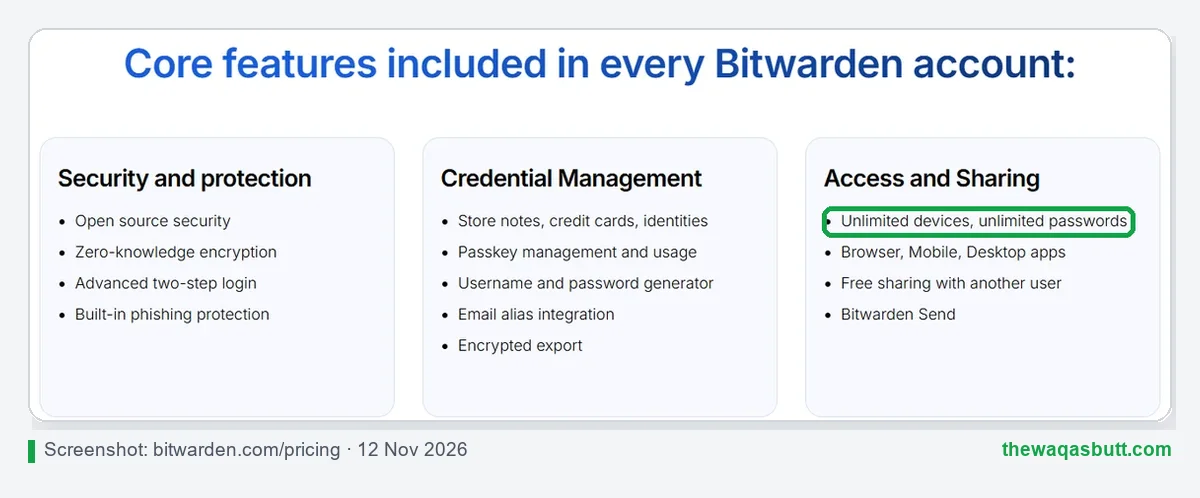
My take: start free. Upgrade only if you need breach alerts, easy sharing or a smoother multi-device experience.
NordPass: a closer look
NordPass is made by the company behind NordVPN. It’s easy to use, which makes it a good choice for beginners.
- Free plan: unlimited passwords, sync across devices, autosave and autofill, according to its FAQ.
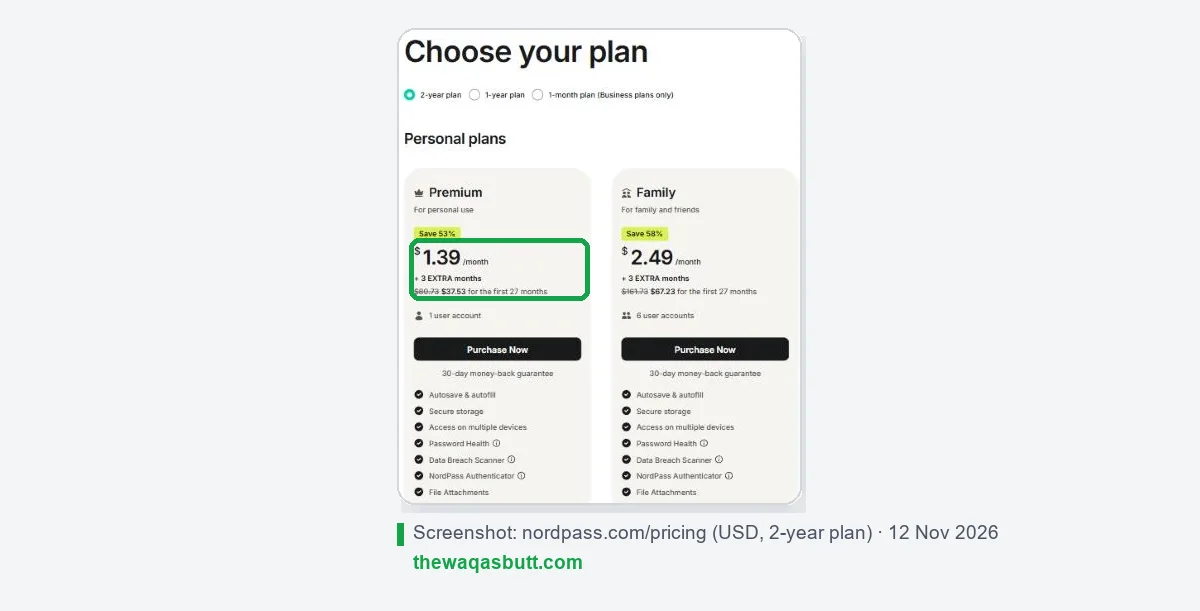
- Premium: $1.39/month on the 2-year plan ($37.53 for the first 27 months) or $1.99/month on the 1-year plan ($23.88 for the first 12 months).
- Family: $2.49/month on the 2-year plan, for 6 user accounts.
- Extras on Premium: Password Health, Data Breach Scanner, file attachments and sharing.
- Money-back guarantee: 30 days on personal plans.
The 3 extra months on 2-year plans is a promotion that NordPass’s terms say runs until 9 December 2026, and the extra months are added after the 30-day refund period. Prices shown exclude VAT, so check the final total at checkout.
How to create a strong master password
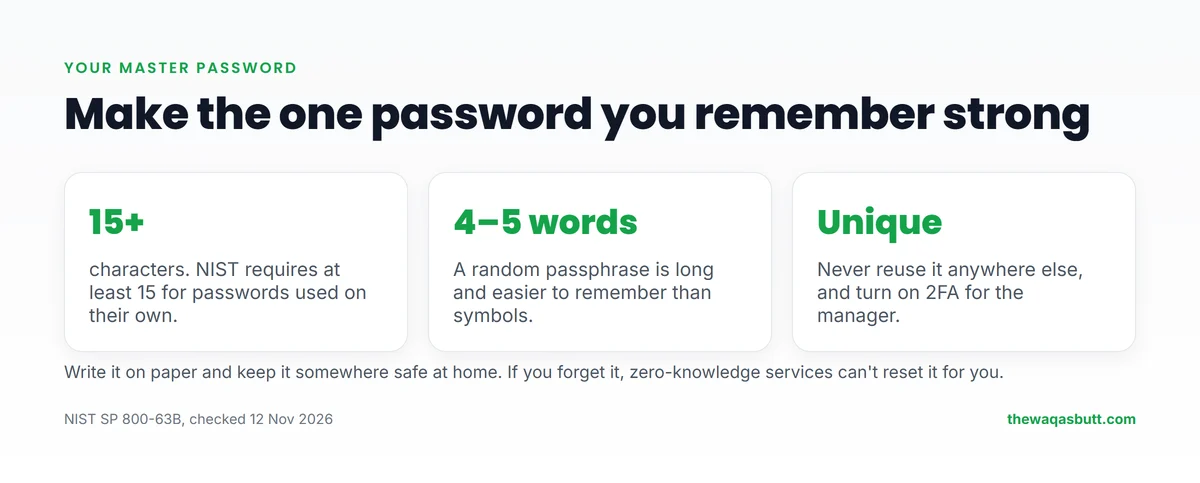
NIST’s current guidelines require passwords used on their own to be at least 15 characters, and say services shouldn’t force mixtures of character types or regular password changes.

- Use a passphrase of 4–5 random words, such as “orange-lamp-river-cricket-cloud” (don’t use this example).
- Make it unique: never use it for any other account.
- Turn on two-factor authentication for the password manager.
- Write it on paper and keep it safe at home until you’ve memorized it.
Tips for freelancers and online workers
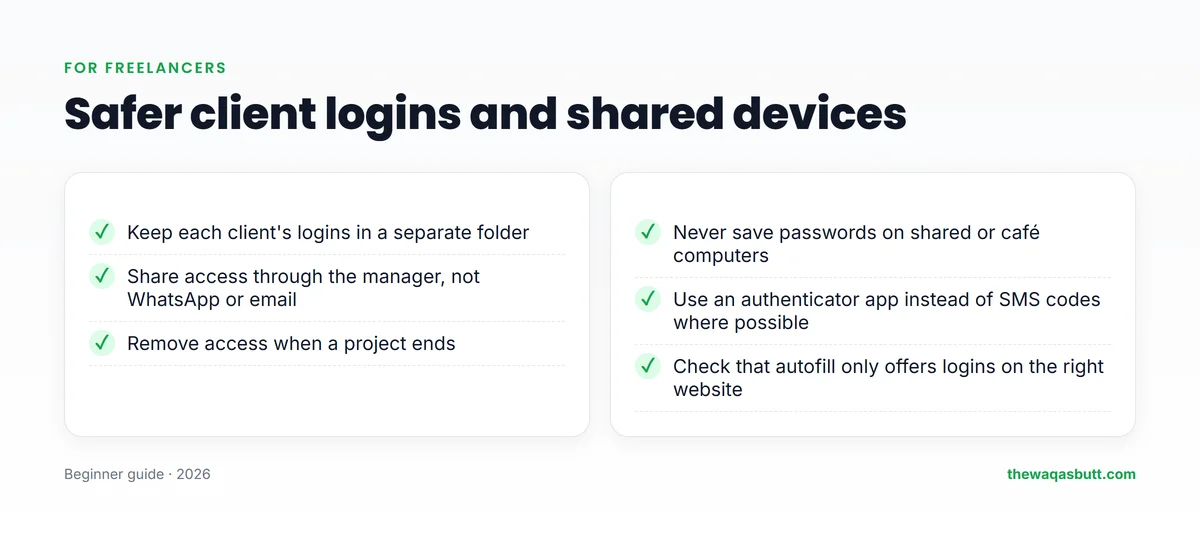
- Separate clients: keep each client’s logins in their own folder.
- Share safely: share access through the password manager instead of WhatsApp, email or screenshots.
- Remove access when a project ends, and change any shared passwords.
- Shared or café computers: never save passwords in their browser, and always log out.
- Prefer authenticator apps over SMS codes where possible, because SMS codes can be stolen if someone takes over your phone number.
- Watch for phishing: if your manager doesn’t offer to fill a login, check the website address carefully before typing anything.
If you manage several social media or client accounts, an antidetect browser can help keep profiles separate. See my Multilogin review.
How to start using a password manager
- Pick a manager and create your account with a strong master password.
- Install the browser extension and the phone app.
- Import passwords saved in your browser, or let the manager save them as you log in.
- Change weak and reused passwords for your most important accounts first: email, banking, payment and freelancing sites.
- Turn on 2FA for the password manager and your email.
- Delete passwords saved in notebooks, notes apps or chats once they’re in your vault.
Who needs a password manager?
You’ll benefit most if you:
- Have more than a few online accounts, especially payment or freelancing accounts.
- Work with clients and need to share logins safely.
- Use more than one device or browser.
You may not need a paid one if you:
- Use only one browser and phone ecosystem; its built-in manager may be enough.
- Have very few accounts and already use unique passwords with 2FA.
How to switch to a password manager in one weekend
Switching feels like a big job, but you can do the important part in a weekend. The trick is to start with your most important accounts and not try to fix everything at once.
Saturday: set up the basics
- Pick one password manager. Choose a well-known one that works on your devices, and stick with it instead of testing several.
- Create a strong master password. Use a long, unique passphrase that you have never used anywhere else.
- Turn on two-factor authentication for the password manager account, before you add anything to it.
- Install the browser extension and the phone app, then sign in on both.
- Import the passwords saved in your browser. Most managers have an import tool that reads an exported file. Delete that exported file as soon as the import is finished, because it is not encrypted.
Sunday: clean up the accounts that matter
- Start with email, banking and work accounts. If someone gets into your email, they can reset almost everything else.
- Replace reused passwords. Let the manager generate a long random password for each account, one account at a time.
- Check the two-factor settings on those key accounts while you are there.
- Delete the passwords saved in your browser once they are safely in the vault, so you have one place to look after.
- Remove old copies in notes apps, chats, emails and paper notes.
You don’t have to finish everything in two days. Each time you log in to another old account over the following weeks, let the manager save or update it. Before long, the vault will hold everything you actually use.
What to do if a password manager company has a security incident
It’s unsettling to hear that the company holding your passwords has been attacked. Take a breath first. A well-built manager encrypts your vault, so an incident doesn’t always mean your passwords were exposed. These steps will keep you safe either way.
- Stay calm and read the official notice. Get information from the company’s own website or the email address it normally uses, not from social media rumors.
- Follow the company’s guidance. It will say what was affected and what customers should do.
- Change your master password. Choose a new long, unique passphrase, especially if the company advises it or if your old one was short.
- Change your most important passwords first. Start with email, banking and work accounts, then continue with the rest as time allows.
- Check your two-factor authentication. Make sure it is still switched on, and review the devices and sessions that are signed in.
- Watch for phishing emails. Attackers often send fake messages that pretend to come from the company. Don’t click links in them, and go to the website directly instead.
This is a good reason to have a strong master password and two-factor authentication from the beginning. Those two habits protect you far more than any single feature.
Passkeys and password managers
Passkeys are a newer way to sign in without typing a password. Instead of a secret you remember, your device proves it is you, often with a fingerprint, a face scan or a screen lock code.
Many password managers can store and sync passkeys along with your passwords. That means you can use a passkey on more than one device, and you aren’t tied to a single phone or browser.
- Use passkeys where a site offers them. They are resistant to phishing, because they only work on the real website.
- Keep your password manager for everything else. Many sites still use passwords, so you will need both for a while.
- Protect the manager itself. Your passkeys are only as safe as the account that holds them, so keep a strong master password and two-factor authentication.
How I researched this guide
- Official sources: NordPass’s pricing page, FAQ, security page and promotion terms; Bitwarden’s pricing page; NIST SP 800-63B; and LastPass’s December 2022 incident notice, all checked on 12 November 2026.
- Competitor guides: I read the top-ranking “password managers explained” articles in the US. Most are written by password-manager companies, few mention the LastPass incident or passkeys, and none give advice for freelancers handling client logins.
- What I didn’t do: I haven’t run my own security tests on these products, so I rely on their published security details and independent standards.
Final thoughts
A password manager lets you use a unique, strong password everywhere while remembering only one. For anyone earning online, it’s one of the simplest ways to protect your accounts and your income.
Start with a free plan, protect it with a long master password and 2FA, and upgrade only if you need extra features.
If you’d like an easy option across devices, you can try NordPass here. For more tools I use and recommend, see my resources page.
FAQ
What is a password manager in simple words?
It’s an app that saves all your passwords in one encrypted vault, creates strong new ones and fills them in for you. You only need to remember one master password.
Are password managers safe?
Good ones use zero-knowledge encryption, so the company can’t read your vault. Your safety still depends on a long, unique master password and two-factor authentication.
Is there a free password manager?
Yes. NordPass and Bitwarden have free plans with unlimited passwords, and Google Chrome and Apple devices include free built-in password managers.
How much does NordPass cost?
When checked on 12 November 2026, NordPass Premium cost $1.39 a month on a 2-year plan or $1.99 a month on a 1-year plan, and Family cost $2.49 a month on a 2-year plan. VAT is not included.
What happens if I forget my master password?
With zero-knowledge managers, the company can’t see or reset your master password. Set up any recovery options the app offers and keep your master password written somewhere safe at home.
Is the browser’s built-in password manager enough?
For many people, yes, and it’s much better than reusing passwords. A standalone manager is better if you use several browsers, share logins or want breach alerts.
Should I use SMS codes or an authenticator app?
Use an authenticator app or passkeys where possible. SMS codes are better than nothing, but they can be stolen if someone takes over your phone number.
Want more honest guides on tools for earning online? Join my newsletter.