Disclosure: This article contains affiliate links. If you buy through them, I may earn a commission at no extra cost to you. I only recommend tools I’ve researched carefully, and my opinions are my own. Read the full disclaimer.
Sooner or later, every website owner opens their DNS settings and sees a table full of letters: A, CNAME, MX, TXT, NS. One wrong change can take your website or your email offline.
The good news is that you only need to understand six records to run a normal blog, connect domain email and verify your site with Google.
In this guide, I’ll explain each DNS record in plain English, using the real DNS records of this website as examples. You’ll also learn how to add a record safely and which mistakes to avoid.
Quick answer
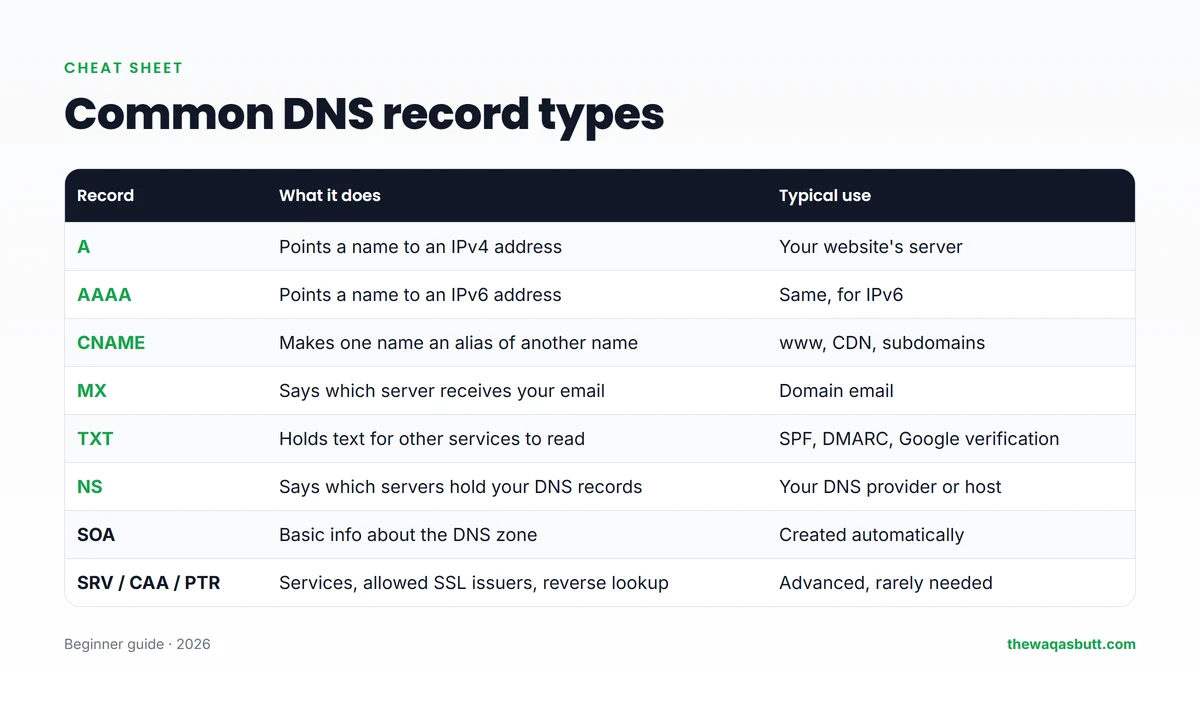
- DNS records are instructions stored on your domain’s nameservers. They tell the internet where your website and email live.
- A / AAAA: point your domain to a server’s IP address.
- CNAME: makes one name an alias of another, such as www.
- MX: says which server receives your email.
- TXT: holds text for other services, such as SPF, DMARC and Google verification.
- NS: says which company holds all your DNS records.
If you’re starting a website, Hostinger gives you a DNS editor with your domain and hosting. Use code SK20 at checkout.
In this guide
- What is a DNS record?
- How a DNS lookup works
- The DNS records behind this website
- The 6 DNS records you’ll actually use
- Email records: MX, SPF, DKIM and DMARC
- Other DNS record types
- TTL and propagation: why changes take time
- How to add a DNS record
- Verifying Search Console and AdSense
- Common DNS mistakes to avoid
- A quick DNS troubleshooting checklist
- How I researched this guide
- Final thoughts
- FAQ
What is a DNS record?
DNS stands for Domain Name System. It’s often called the phone book of the internet, because it turns names like thewaqasbutt.com into the numbers computers use.
A DNS record is one line in that phone book. Each record has a few parts:
- Type: what kind of record it is, such as A or MX.
- Name (host): which name it applies to. @ means the main domain; www means www.yourdomain.com.
- Value (points to): the answer, such as an IP address or another domain name.
- TTL: how long other servers may remember the answer, in seconds.
All the records for one domain together are called its DNS zone. They live on your domain’s nameservers, usually run by your host or your domain registrar.
If you’re still unclear on how domains and hosting fit together, read my guide to domain names and web hosting first.
How a DNS lookup works
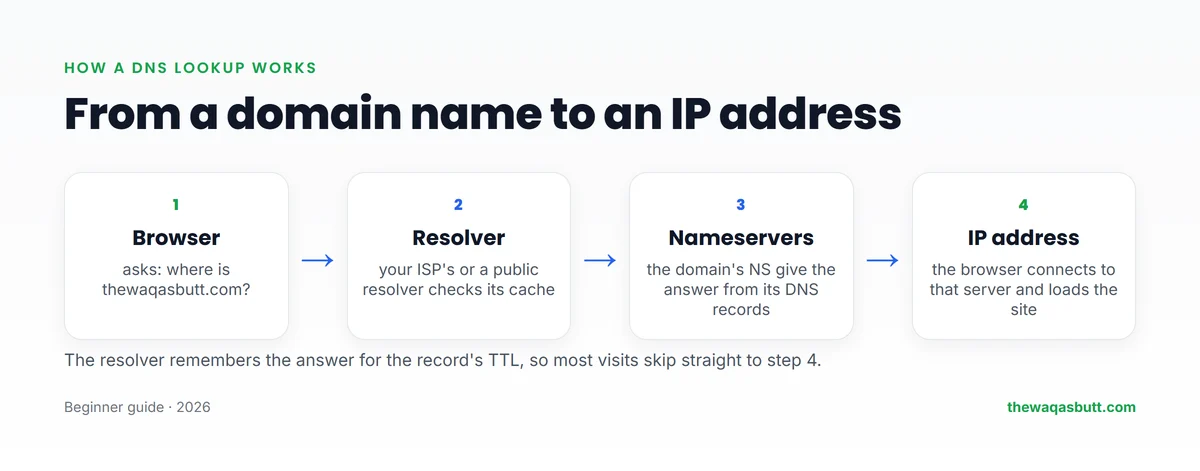
When someone opens your website, this happens in a fraction of a second:
- The browser asks a resolver (usually run by the internet provider, or a public one) for your domain’s address.
- If the resolver doesn’t already have the answer, it finds your domain’s nameservers.
- Your nameservers reply with the right record, such as the A record with your server’s IP address.
- The resolver passes the answer back and remembers it for the record’s TTL.
That last step explains why DNS changes aren’t instant. More on that in the TTL section below.
The DNS records behind this website
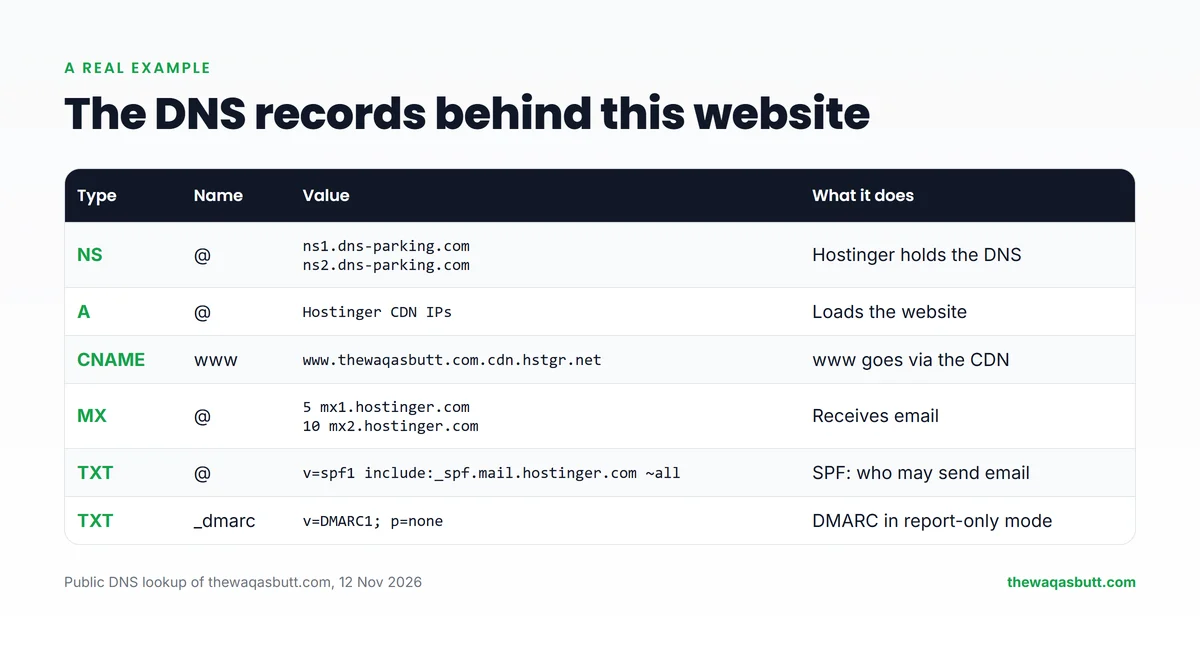
Most guides use made-up examples. I looked up the real, public DNS records of thewaqasbutt.com on 12 November 2026, so you can see what a normal WordPress blog on Hostinger uses.
| Type | Name | Value | What it does |
|---|---|---|---|
| NS | @ | ns1.dns-parking.com, ns2.dns-parking.com | Hostinger holds the DNS |
| A | @ | Hostinger CDN IP addresses | Loads the website |
| CNAME | www | www.thewaqasbutt.com.cdn.hstgr.net | Sends www through the CDN |
| MX | @ | mx1.hostinger.com (5), mx2.hostinger.com (10) | Receives email |
| TXT | @ | v=spf1 include:_spf.mail.hostinger.com ~all | SPF: who may send email |
| TXT | _dmarc | v=DMARC1; p=none | DMARC in report-only mode |
Anyone can look up public DNS records. I used Google Admin Toolbox Dig, a free tool from Google. You can do the same for your own domain.
The 6 DNS records you’ll actually use
A record: points your domain to a server
An A record connects a name to an IPv4 address, such as 192.0.2.10. It’s the record that makes your website load.
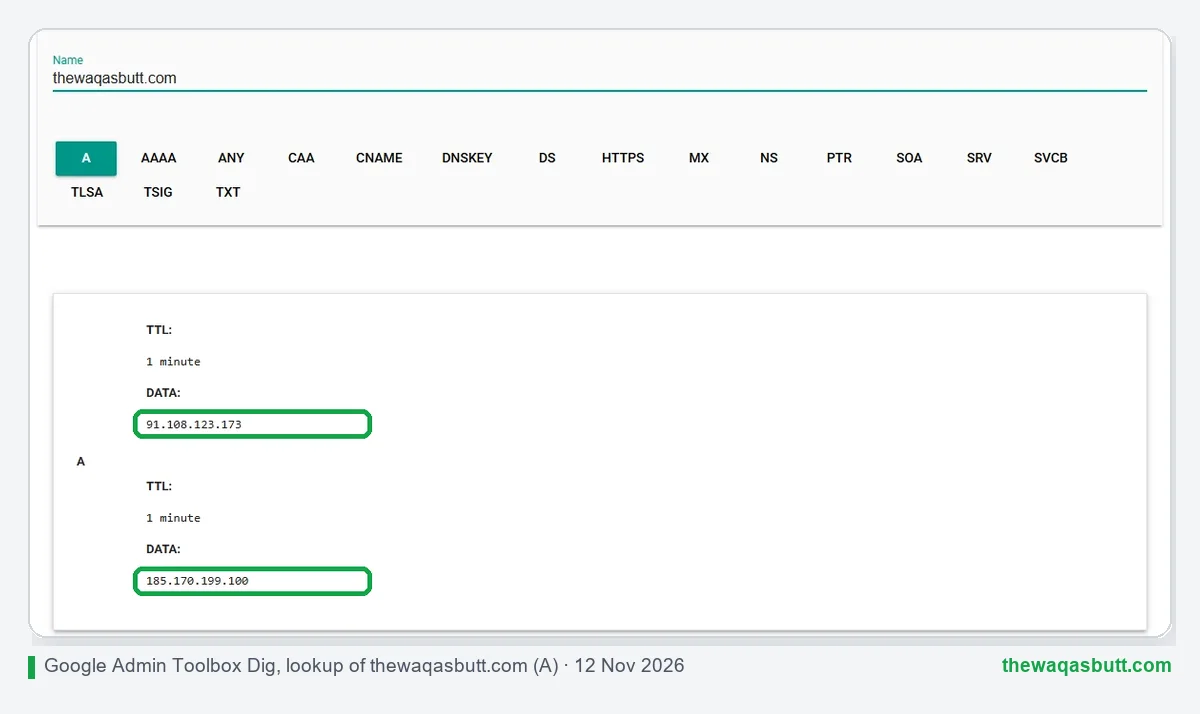
You might notice my A record shows different IP addresses in different lookups. That’s because this site uses Hostinger’s CDN, which answers from servers near the visitor. With normal hosting, you’d see one fixed IP.
AAAA record: the IPv6 version
An AAAA record does the same job as an A record, but for the newer IPv6 addresses, which look like 2a02:4780:84::1. If your host gives you one, add it alongside the A record.
CNAME record: an alias for another name
A CNAME says “this name is the same as that name”. It points to another domain name, never to an IP address.
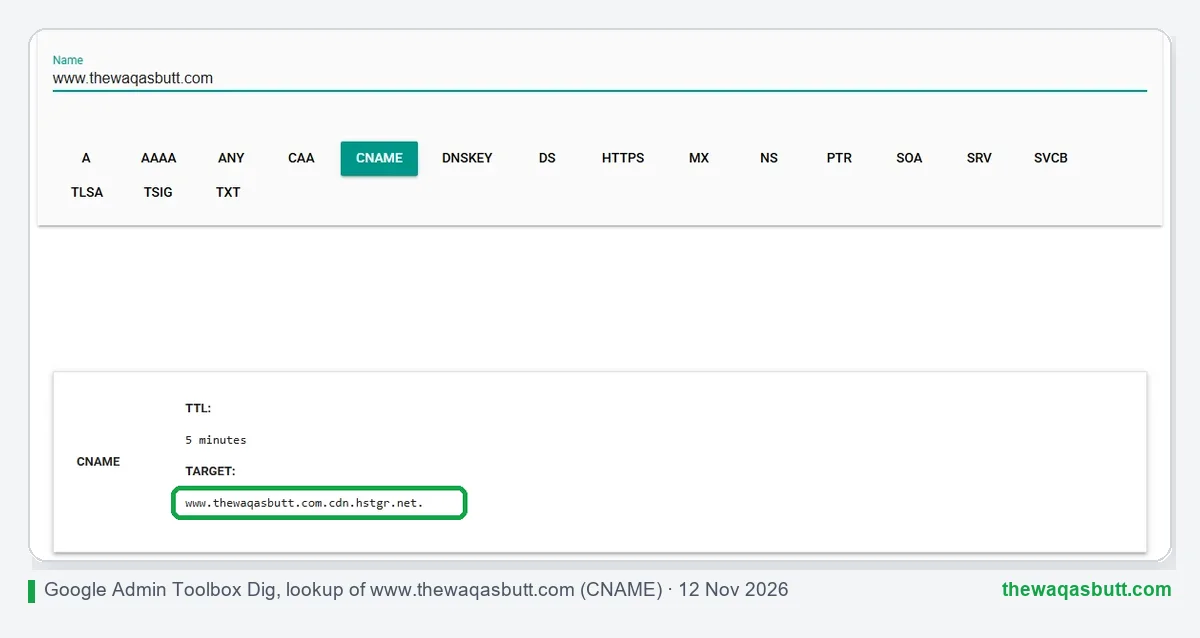
Common uses are www, CDN setups and services like a shop or help desk on a subdomain. On my site, www is a CNAME to a Hostinger CDN address.
Important rule: a CNAME can’t share its name with any other record. That’s why you normally can’t put a CNAME on the root domain (@), which already has NS and other records. Some providers offer a special “ALIAS” or “flattened” record for that case.
MX record: where your email goes
An MX record tells other mail servers where to deliver email for your domain. Each MX record has a priority number. The lowest number is tried first.
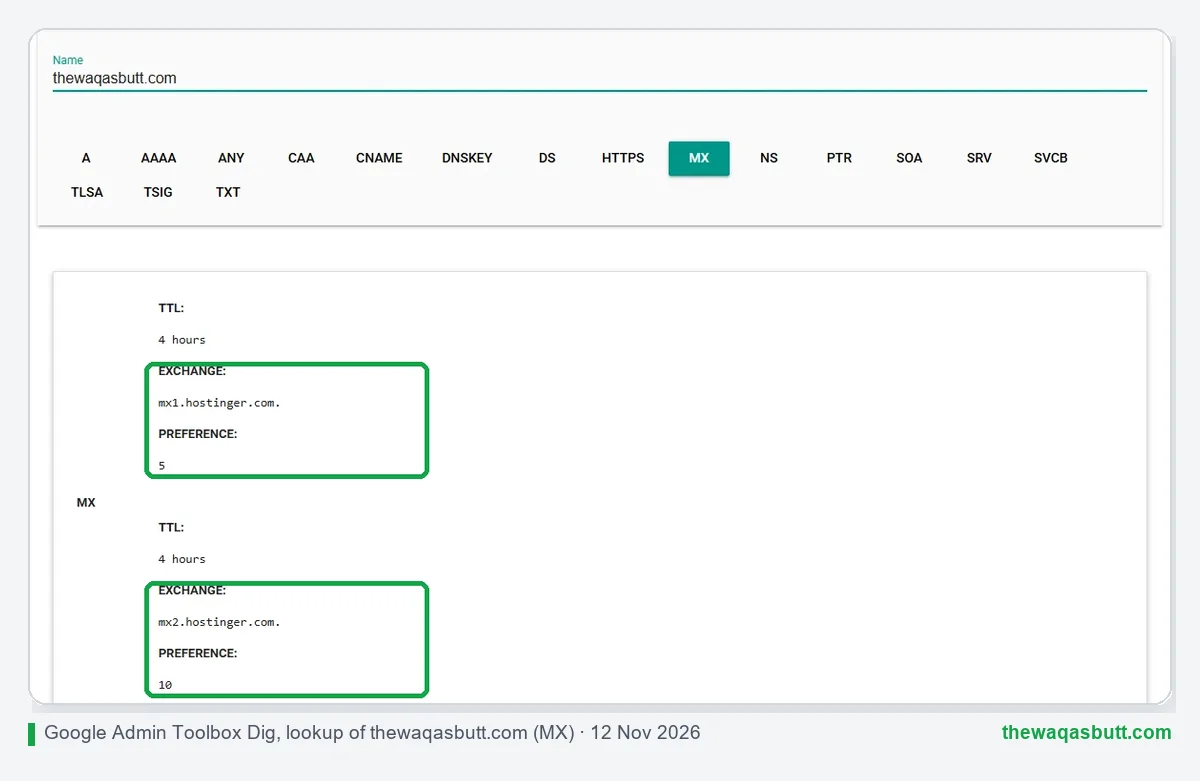
My domain uses Hostinger email, so its MX records point to mx1.hostinger.com (priority 5) and mx2.hostinger.com (priority 10). If the first server is down, mail goes to the second.
An MX record must point to a hostname with its own A or AAAA record, not to a CNAME or an IP address.
TXT record: text for other services
A TXT record holds plain text that other services read. It doesn’t change where your website or email goes. Instead, it proves things, such as who owns the domain or which servers may send its email.
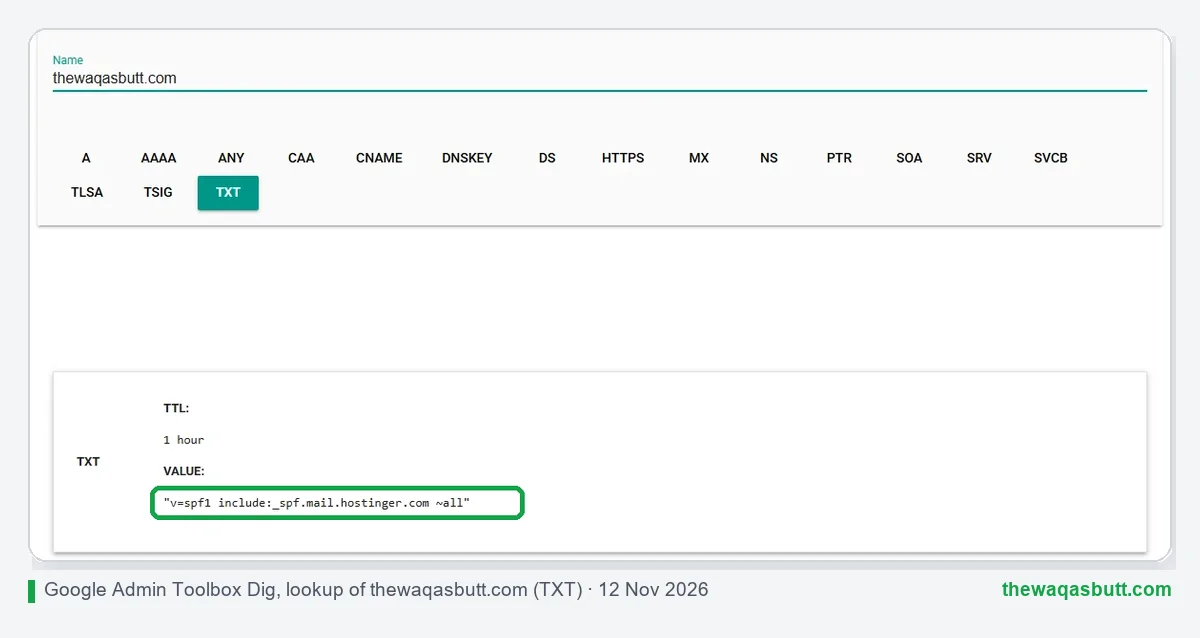
You’ll use TXT records for SPF, DMARC and Google Search Console verification. A domain can have many TXT records.
NS record: who holds your DNS
NS records name the nameservers that hold all your other records. They’re the most powerful records, because changing them moves control of your entire DNS zone.
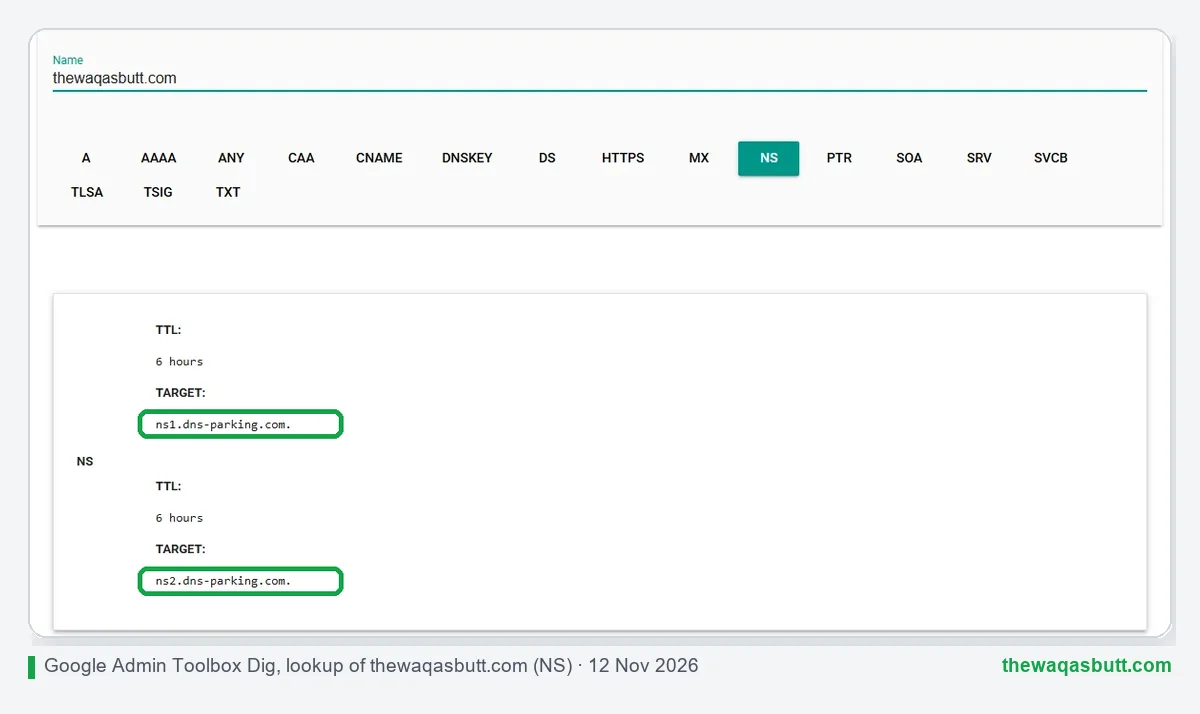
My domain uses ns1.dns-parking.com and ns2.dns-parking.com, which are Hostinger’s nameservers. That’s why all its other records are managed in Hostinger’s dashboard.
Remember: when you change nameservers, records at your old provider stop working. Copy them to the new provider first.
Email records: MX, SPF, DKIM and DMARC
If you send email from your own domain, such as you@yourblog.com, four records decide whether your emails arrive or land in spam.
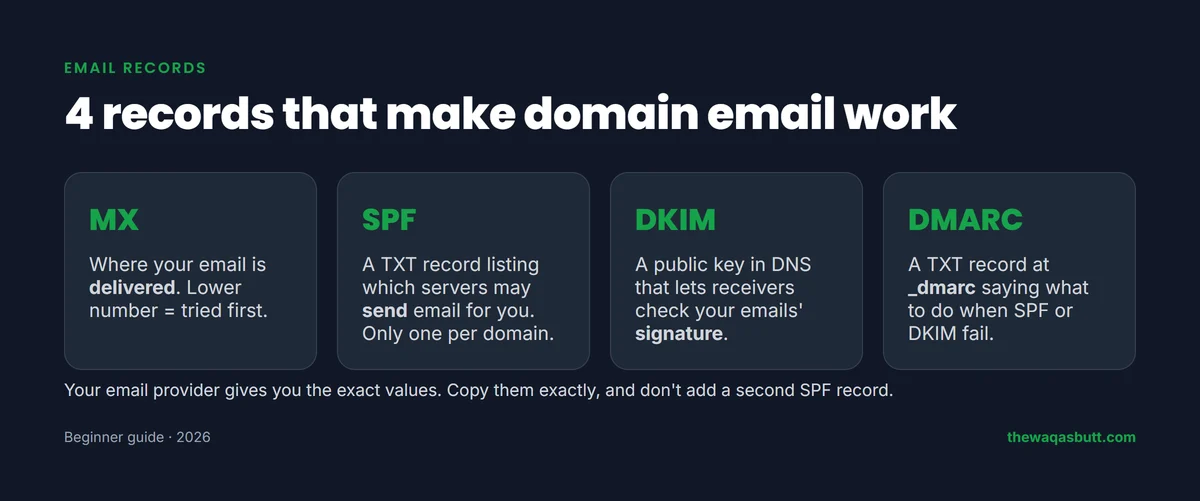
- MX: where incoming email is delivered.
- SPF: a TXT record listing which servers may send email for your domain. My site’s SPF is v=spf1 include:_spf.mail.hostinger.com ~all.
- DKIM: a public key stored in DNS, usually as a TXT or CNAME record. Receiving servers use it to check your emails’ digital signature.
- DMARC: a TXT record at _dmarc.yourdomain.com that tells receivers what to do when SPF or DKIM checks fail.
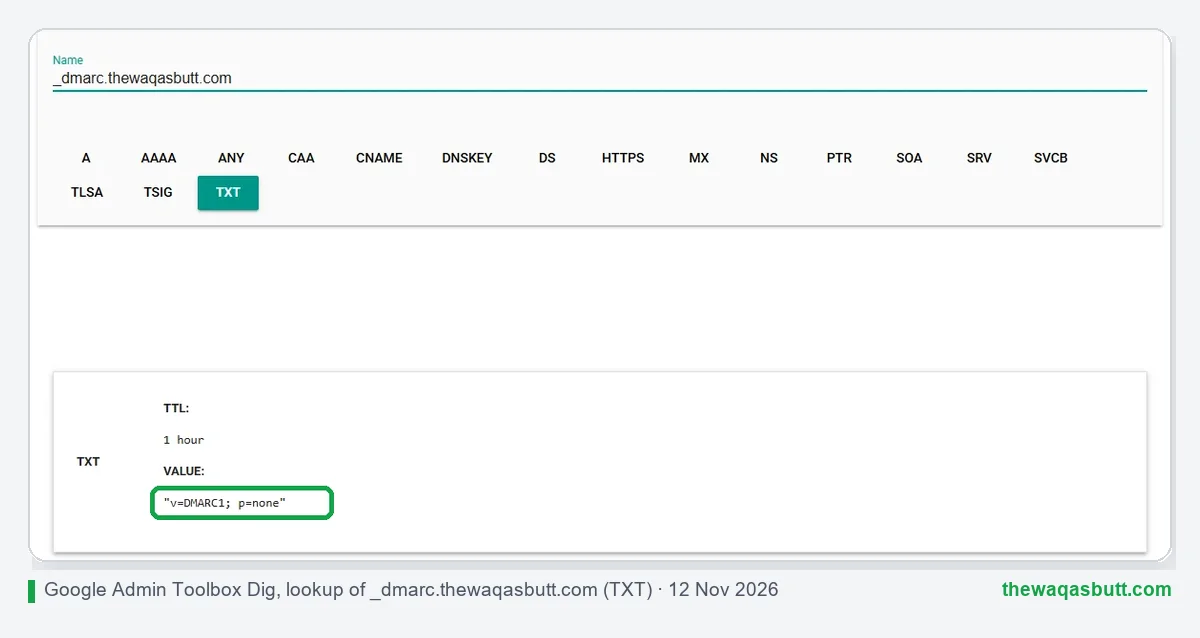
My DMARC record is v=DMARC1; p=none, which means “don’t block anything yet”. It’s a safe starting point. Larger senders later move to p=quarantine or p=reject.
Two SPF rules beginners must know:
- Only one SPF record per domain. If you use two email services, merge them into one record, such as v=spf1 include:first.com include:second.com ~all.
- SPF allows at most 10 DNS lookups. Each “include” counts, so don’t stack too many services.
Other DNS record types
You’ll see these in your DNS editor, but most bloggers rarely touch them:
- SOA: basic information about your DNS zone. Your provider creates it automatically.
- SRV: points a specific service, like some calling or chat apps, to a server and port.
- CAA: lists which certificate authorities may issue SSL certificates for your domain.
- PTR: reverse DNS, turning an IP back into a name. It’s set by whoever owns the IP, usually your host, not in your normal DNS editor.
TTL and propagation: why changes take time
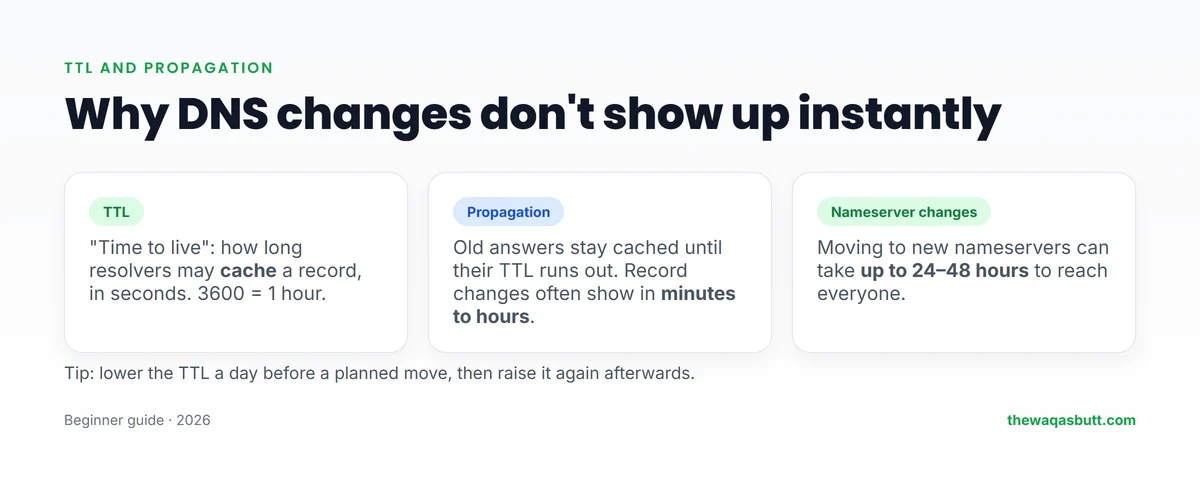
TTL (time to live) is how long resolvers may cache a record, in seconds. For example, 3600 means one hour. My MX records use 14400 seconds, which is four hours.
When you change a record, resolvers that already cached the old answer keep using it until its TTL runs out. That delay is what people call DNS propagation.
- Record changes (A, CNAME, TXT, MX) often show within minutes to a few hours.
- Nameserver changes can take up to 24–48 hours to reach everyone.
- Planning a move? Lower the TTL to 300 seconds a day before, make the change, then raise it again.
To check progress, look up the record in a public tool like Google Admin Toolbox Dig, or a “DNS propagation checker” that tests from many countries.
How to add a DNS record
Every provider’s screen looks a little different, but the fields are the same. Here’s how it works at Hostinger, based on its official help article:
- Open your Hostinger dashboard.
- In the left sidebar, choose Domains, then click DNS.
- Select your domain. The DNS records tab opens.
- In Manage DNS records, choose the record Type, then enter the Name, Value and TTL.
- Save, then check the record with a lookup tool after a few minutes.
Hostinger’s DNS page also has a DNS history tab to restore an earlier version of your zone, plus import and export. Export your records before big changes, so you can undo mistakes.
Before you edit anything: take a screenshot or export of your current records. Never delete records you don’t understand, especially MX and TXT.
Verifying Search Console and AdSense
Google Search Console
Search Console offers several ways to verify a website, such as an HTML file or meta tag. But Google’s help page says the domain name provider method (a DNS record) is the only way to verify a Domain property.
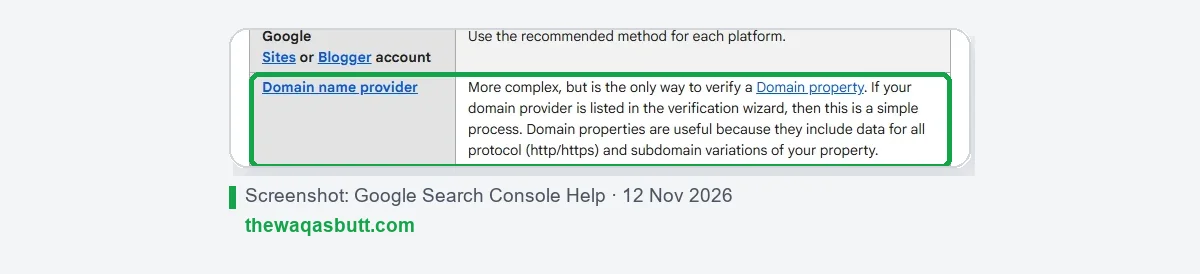
A Domain property covers http, https, www and all subdomains together, so it’s worth the extra step. Google gives you a TXT value; add it as a TXT record on @, then click Verify.
Google AdSense
Many beginners think AdSense needs a DNS record too. It doesn’t. Google’s AdSense help lists three ways to connect your site: the AdSense code snippet, an ads.txt snippet, or a meta tag. None of them uses DNS.
Common DNS mistakes to avoid
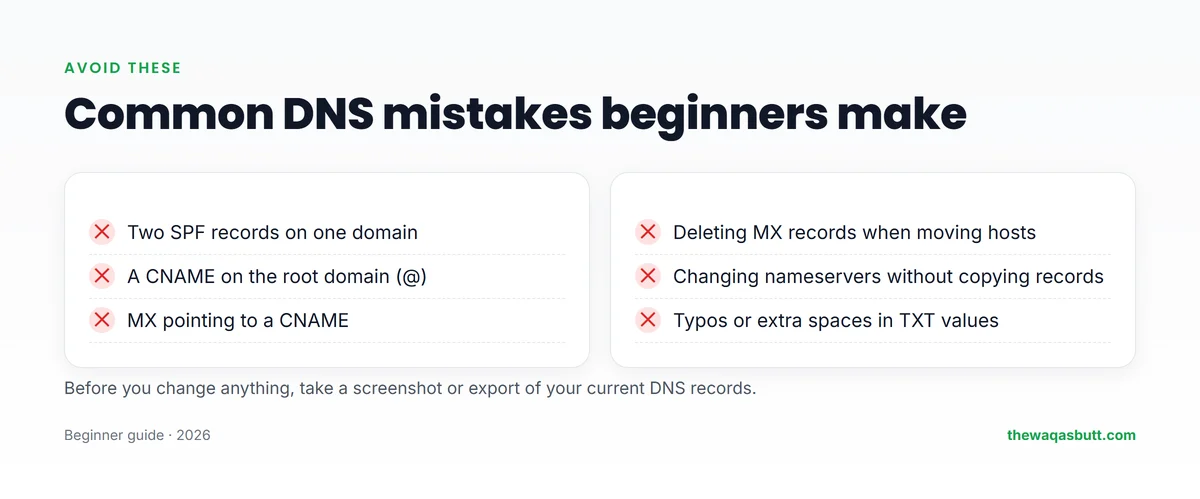
- Two SPF records. Merge them into one, or email checks fail.
- A CNAME on the root domain. Use an A record (or your provider’s ALIAS option) for @.
- MX pointing to a CNAME or an IP. Point it to the mail server’s hostname.
- Deleting MX records when moving hosts. Your website moves, but your email breaks.
- Changing nameservers without copying records. Everything at the old provider stops working.
- Typos in TXT values. Copy and paste exactly, without extra spaces or quotes your provider adds automatically.
- Panicking too early. Wait for the old TTL to pass before deciding a change didn’t work.
A quick DNS troubleshooting checklist
If something isn’t working after a DNS change, don’t start changing records at random. Work through this list in order, and change only one thing at a time.
- Check the record in a public lookup tool. Look up the exact name and type you changed. This shows what the wider internet sees, not just your own computer.
- Confirm the nameservers. Make sure your domain really uses the provider where you edited the records. If you edited the wrong place, nothing will change.
- Wait for the TTL. Resolvers keep the old answer until its time runs out, so be patient before you decide a change failed.
- Look for typos. Check the name, the value and any extra spaces. Some providers want a trailing dot after a hostname and others add it for you, so follow your provider’s own examples.
- Look for conflicting records. Two records that answer the same question, such as an old A record next to a new one, can send visitors to the wrong place.
- Clear your local DNS cache. Your device and browser also remember answers. Restart the browser, try another network or device, then compare.
If the public lookup shows the right answer but your own device doesn’t, the problem is almost always a local cache. If the lookup shows the wrong answer, go back to the records and nameservers.
How I researched this guide
- Real records: I looked up the public DNS records of thewaqasbutt.com on 12 November 2026, using Google Admin Toolbox Dig and a second resolver to compare.
- Official sources: Hostinger’s help article on managing DNS records, Google Search Console Help on verification, and Google AdSense Help on connecting a site.
- Competitor guides: I read the top-ranking “DNS records explained” guides in the US. All were written by DNS, hosting or security companies. Few explained email records, step-by-step editing or common mistakes for beginners, so I focused on those.
Final thoughts
DNS looks scary, but for a normal blog you only need six records: A, AAAA, CNAME, MX, TXT and NS. A and CNAME load your website, MX and TXT handle email and verification, and NS decides who holds them all.
Change one thing at a time, keep a copy of your records, and give DNS time to update.
If you’re setting up a new site, you can start with Hostinger here and use code SK20 at checkout. For more tools I use, see my resources page.
FAQ
What are DNS records?
DNS records are instructions stored on your domain’s nameservers. They tell browsers and mail servers where your website and email live, and hold text for verification, such as SPF and Google Search Console.
What is the difference between an A record and a CNAME?
An A record points a name to an IP address. A CNAME points a name to another domain name. You normally can’t use a CNAME on the root domain (@), so the root uses an A record.
How long do DNS changes take?
Record changes often show within minutes to a few hours, depending on the old record’s TTL. Nameserver changes can take up to 24 to 48 hours to reach everyone.
Can I have two SPF records?
No. A domain should have only one SPF record. If you use more than one email service, combine them into a single SPF record with several include entries.
Which DNS record do I need for Google Search Console?
To verify a Domain property, add the TXT record Google gives you to your domain’s DNS. URL-prefix properties can also use other methods, such as an HTML file or meta tag.
Does Google AdSense need a DNS record?
No. Google’s AdSense help lists the AdSense code snippet, an ads.txt snippet or a meta tag as the ways to connect your site. None of them uses DNS.
What happens if I change my nameservers?
Your DNS moves to the new provider, and records at the old provider stop working. Copy your A, CNAME, MX and TXT records to the new provider first.
Want more simple guides for running your website? Join my newsletter.